Inside the ticket
The ticket screen concentrates the whole workflow: data and conversation on the left, actions and classification on the right. This page walks the full cycle, from opening to resolution.
The ticket screen
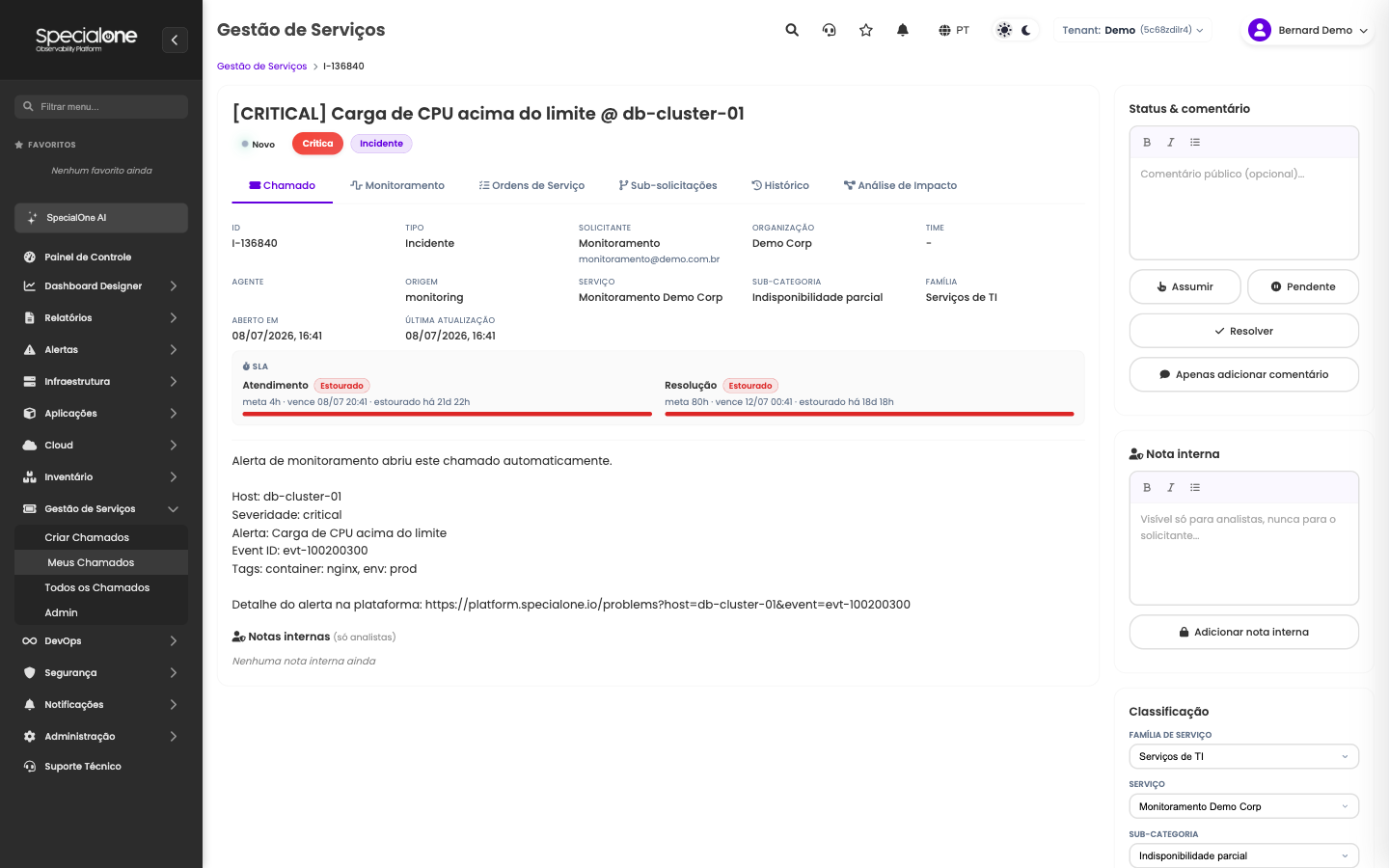
The top shows title, status, priority and type. Tabs organize the content: Ticket (data, description and conversation), Monitoring and Impact Analysis (see Integrations), Work Orders, Sub-requests and History.
The SLA panel tracks the ticket's two targets in real time:
- Response: deadline for the team's first reply.
- Resolution: deadline to actually resolve.
Each target shows the computed deadline and a color-coded state (on time, at risk or breached). A ticket in Pending status has the clock paused: time waiting on a third party or the requester does not count against the team.
The lifecycle
A ticket is born New and follows a flow with rules that protect the quality of the operation:
- New → Assigned: someone takes it (Take button) or queue distribution delivers it. When you work on a ticket it automatically moves to In progress.
- Pending: when progress depends on a third party or the requester. The SLA pauses until it returns.
- Resolved: the Resolve button requires a resolution note. It is recorded on the ticket and visible to the requester, no silent resolutions.
- Closed: the definitive end, after resolution (that is when the satisfaction survey kicks in).
The conversation: comments and internal notes
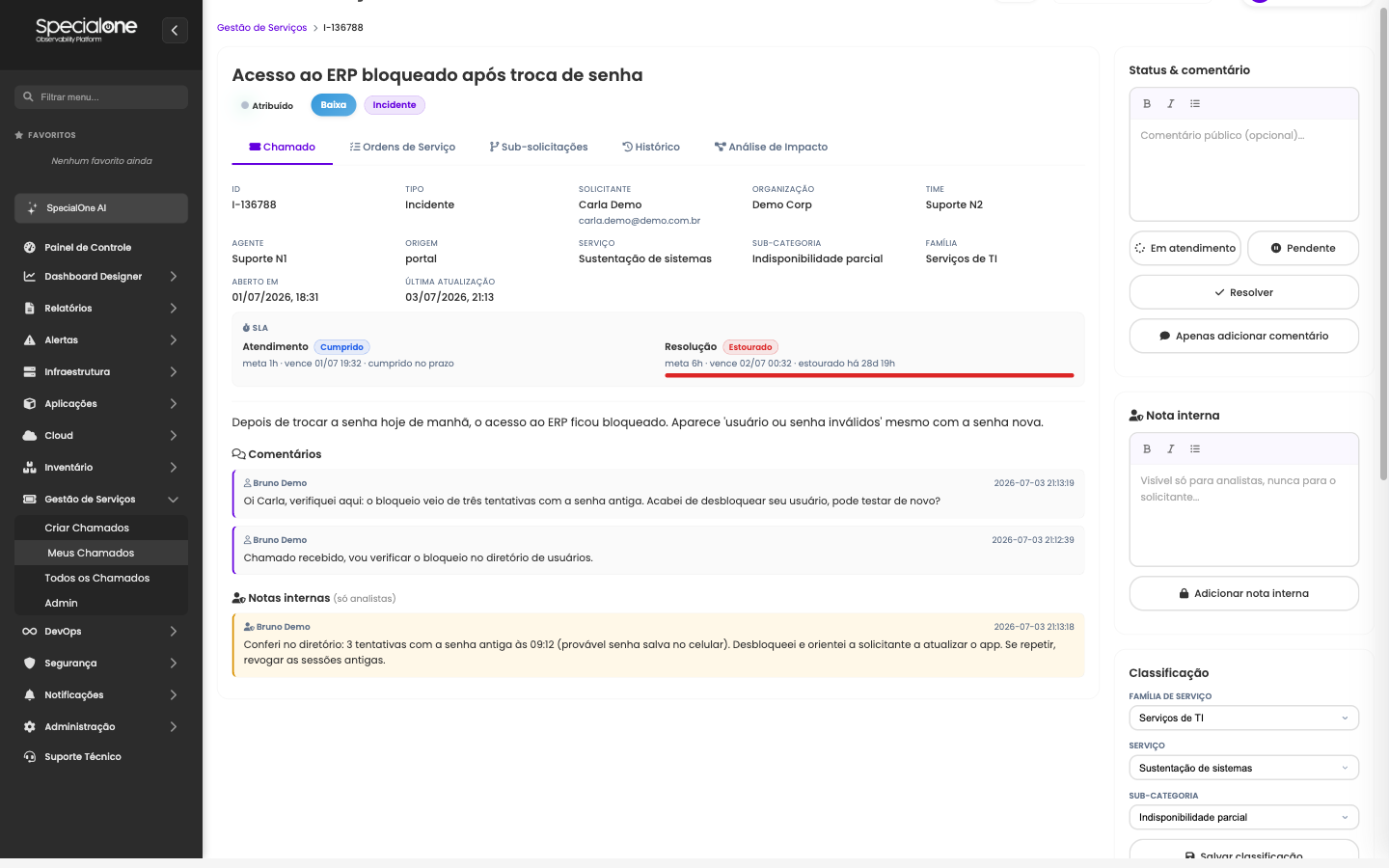
The ticket conversation has two layers, and the difference matters:
- Comments are the public conversation with the requester: requests for information, progress updates, the final answer. Everything the requester should follow goes here (the Status & comment box).
- Internal notes are the team's backstage: diagnosis, hypotheses, decisions and technical context. They are highlighted on the ticket and visible to analysts only, never to the requester, not by email, not in the portal, not through the AI assistant.
In the example above, the agent replied to the requester through comments and recorded the full diagnosis in an internal note (the cause of the block and the preventive guidance). Whoever picks the ticket up next understands the case in seconds, without exposing technical detail to the customer.
Attachments and images pasted into the conversation are shown inline, both in the description and in comments.
Classification, assignment and priority
In the right column, three blocks adjustable during the work, according to the profile's permission:
- Classification: catalog family, service and subcategory. Changing it reflects on SLA targets and knowledge links.
- Assignment: responsible team (queue) and agent.
- Priority: urgency and impact, which compose the final priority.
History
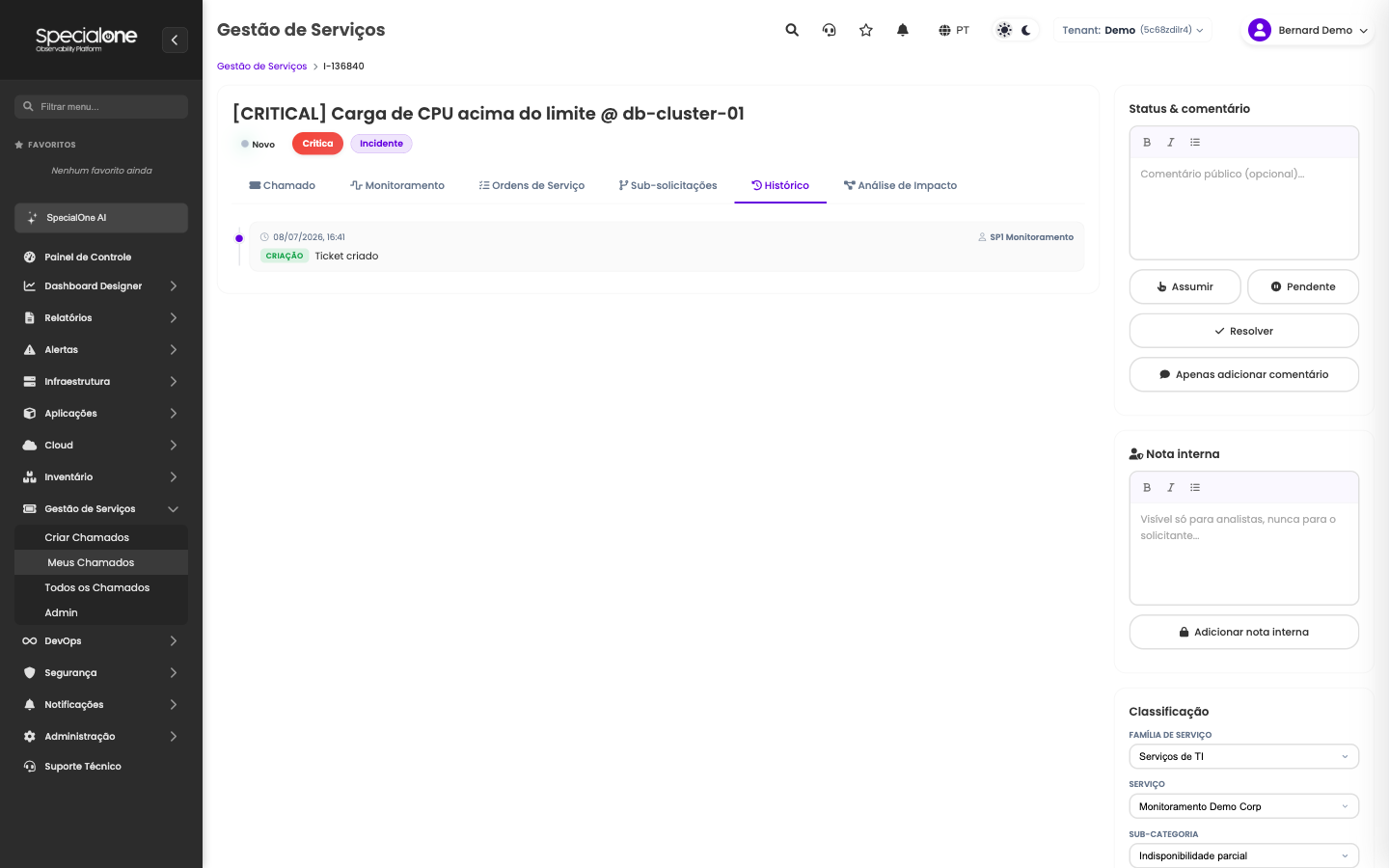
The History tab is the auditable timeline: creation, status, classification and assignment changes, with author and date on each event. Useful for audits and for understanding a ticket that went through many hands.
Good practice tips
- Take before working: an assigned ticket is not offered to another agent by the distribution.
- Use Pending with discipline: it keeps the SLA fair when the ball is not with the team.
- Generous internal notes, objective public comments: the next agent will thank you, and the requester gets exactly what they need.
- The AI assistant summarizes long tickets: with the ticket open, ask "summarize this ticket" or "what would you do to resolve it?".
Next steps
-
Integrations
What the Monitoring and Impact Analysis tabs show.
-
Profiles and permissions
Who sees internal notes, who resolves, who administers.