Rules
A notification rule defines how alerts generated by the platform are routed. Given an alert that matches certain criteria (severity, tags, hostname, or specific alerts), the rule decides which channels it should be delivered to.
The Rules page is the filter between the generated alert and its final destination. Without a rule, the alert is recorded and visible in Observe & Explore → Alerts, but it is not pushed anywhere. The rule decides whether that event becomes a message in the on-call Slack channel, a push notification on the team lead's phone, or an email to the team's shared inbox.
A rule is routing, not definition
The alert definition (threshold, metric, condition) lives on the host or profile. The notification rule is one layer above: it only decides where the notification goes. Changing a rule never deletes or silences the alert on the Alerts page, it only changes who receives the message.
Open it from Notifications → Rules.
Who uses it
The page is used by three roles day to day:
- Tenant admin: configures the general rules (NOC on-call, DBA team, infra, security). They make sure every critical production alert lands in the right channel, no gaps.
- SRE or team lead: creates rules specific to their domain. The applications team creates the rule that sends alerts tagged
app:checkoutto the squad's Slack channel. The database team keeps the rule that filtersdb-prod-*. - On-call shift lead: temporarily enables/disables rules during maintenance windows, swaps the destination channel when on-call rotation changes.
Regular users can also open the page and view existing rules (see Who sees what (ACL) below), but only tenant admins can change them.
The list
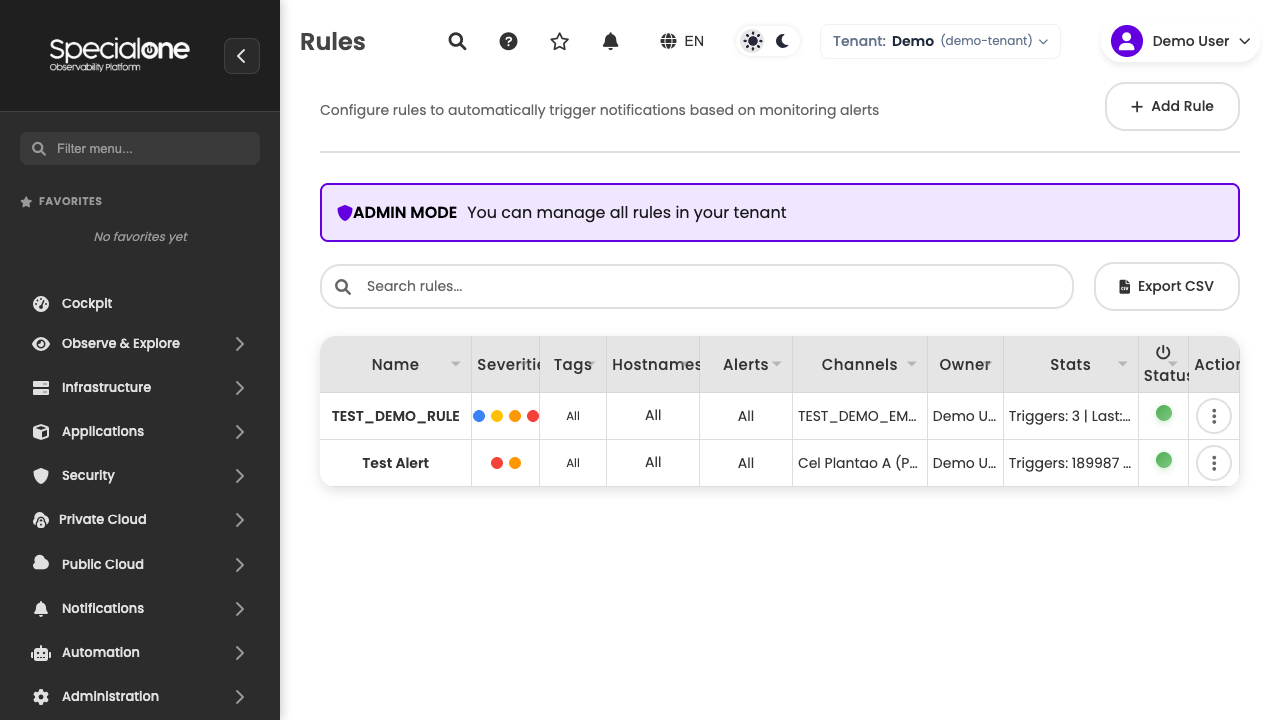
The main table shows every rule configured in the tenant. Each row is a rule, with the columns:
| Column | Content |
|---|---|
| Name | Rule name (also used in logs and the audit trail). |
| Severities | Colored badges for the severities the rule covers: Critical, High, Medium, Information. |
| Tags | Tag patterns matched by the rule, comma-separated, one badge per pattern. |
| Hostnames | Hostname patterns (wildcards supported, e.g. srv-web-*). |
| Alerts | Execution stats: how many times it fired, how many times it failed. |
| Channels | List of channels targeted by this rule. |
| Stats | Last fire time of the rule. |
| Status | Active/inactive toggle. |
| Actions | Edit, delete, and view logs for the rule. |
The table is sortable. Click any column header to sort by name, severity, or last fire time. The New Rule button in the top right opens the creation modal.
Use the name as an index
With 20+ rules in a tenant, the name becomes the team's mental index. Adopt a pattern like [team] - [scope] - [severity] (e.g. NOC - Production - Critical and High, DBA - db-prod - Critical). It becomes easy to find and easy to audit.
How a rule works
The matching logic of a rule is an AND across all criteria: the alert must meet all conditions simultaneously for the rule to fire.
When the platform generates an alert, it is evaluated against every active rule, and the rule fires if:
- The alert's severity is in the rule's severity list, AND
- At least one tag on the host or alert matches some pattern in the rule's tag list, AND
- At least one hostname in the alert matches some pattern in the rule's hostname list, AND
- (Optional) If the rule has a specific alerts list, the current alert is in that list.
Within each list (tags, hostnames, specific alerts) the logic is OR: a single match is enough. Between lists it is AND: every list must have at least one match.
Step by step example
Consider the rule:
- Name: NOC - Production - Critical and High
- Severities: Critical, High
- Tags:
env:prod,team:noc - Hostnames:
srv-web-*,api-* - Specific alerts: (empty)
- Channels: Slack #noc-oncall
Now three alerts arrive:
| Alert | Severity | Host | Tags | Match? |
|---|---|---|---|---|
| Alert 1 | Critical | srv-web-03 |
env:prod, app:portal |
Yes (severity ok, host matches srv-web-*, tag matches env:prod). |
| Alert 2 | Medium | srv-web-03 |
env:prod, app:portal |
No (severity not in the list). |
| Alert 3 | High | db-prod-01 |
env:prod, team:dba |
No (host matches no pattern). |
Only Alert 1 fires this rule. The other two may fire other rules, but not this one.
Rules are not exclusive
A single alert can fire several rules at once. If you have a general NOC rule and a DBA-specific rule, and a critical production database alert matches both, both will notify (NOC and DBA both get a message). That is desired: on-call redundancy beats a missed alert.
Create a rule
The New Rule button opens the creation modal with these fields:
| Field | What to enter |
|---|---|
| Rule Name | Required. Identifies the rule in the table, logs, and audit trail. Follow a naming pattern (see tip above). |
| Severities | Multiple checkboxes: Critical, High, Medium, Information, plus the All shortcut. Pick at least one. |
| Tags | Chip input. Add patterns one at a time (Enter confirms). Matching is ANY, one match is enough. Supports wildcards. |
| Hostnames | Chip input for hostname patterns. Supports wildcards like srv-web-*, db-prod-*, api-*. |
| Specific alerts | Optional selection of individual alerts. Useful when the rule is dedicated to specific alerts (e.g. only the "disk space" alert from storage X). |
| Channels | Multi-select of the channels already created on Channels. Pick one or more destinations. |
| Status | Active/inactive toggle. An inactive rule is saved but does not fire. |
Confirm with Save. The rule lands in the table and is evaluated against subsequent alerts. To discard everything and close the modal, use Cancel.
No channel, no notification
A rule with no selected channels can be saved (it gets recorded), but it notifies nothing when it fires. The platform logs the firing but has nowhere to send it. If the goal is to silence an alert, prefer disabling the rule or tightening the criteria, rather than leaving an active rule with no destination.
Wildcards and patterns
Tags and hostnames accept wildcards with an asterisk. The most common patterns:
| Pattern | Matches |
|---|---|
srv-web-* |
srv-web-01, srv-web-prod-02, srv-web-staging. |
*-prod |
srv-web-prod, db-mysql-prod, api-prod. |
*production* |
srv-production-01, app-production-checkout, production-storage. |
db-prod-* |
db-prod-01, db-prod-mysql, db-prod-postgres-02. |
api-*-01 |
api-checkout-01, api-payments-01. |
*backup* (tag) |
Any tag containing "backup": type:backup, backup:daily. |
A few practical notes:
- Matching is case-insensitive:
SRV-WEB-*andsrv-web-*both matchsrv-web-01. - A single
*pattern matches everything. Useful when you want to skip a criterion (e.g. a rule covering any hostname). - To list exactly one host without wildcards, just enter the full name:
api-checkout-01.
Start narrow, broaden later
It is easier to receive too few notifications than too many. Create the rule with tight criteria, observe a day of operation, and broaden it if you notice relevant alerts being missed. The reverse path, a broad rule that turns into spam, generates noise quickly and the team learns to ignore it.
Specific alerts vs. generic criteria
A rule supports two selection modes that combine:
- Generic criteria (severity + tags + hostnames): the rule covers any new alert that matches the pattern. Ideal for on-call rotations, teams, whole areas.
- Specific alerts (named alerts list): the rule only fires for those alerts. Ideal for pinpoint cases.
When to use each:
| Scenario | Recommended mode |
|---|---|
| NOC on-call gets Critical/High from production. | Generic (severity + tags + hostnames). |
DBA team receives everything from db-prod-*. |
Generic (hostnames). |
| "SSL certificate near expiration" alert goes only to the security lead. | Specific (named list). |
| "Backup is late" alert lands in a dedicated channel. | Specific (named list) or generic by tag *backup*. |
| Squad lead's personal notifications about alerts from the app they own. | Generic by app tag (app:checkout). |
Specific for what is unique, generic for what fits a pattern
If you find yourself listing 30 alerts in a rule's specific mode, those 30 alerts probably share something (tag, severity, naming pattern) and the rule becomes easier to maintain in generic mode. Specific mode shines when the criterion fits no pattern (e.g. three legacy critical alerts from old storage that need their own handling).
Edit and manage
In the Actions column for each row:
- Edit: opens the same creation modal pre-filled. Adjust criteria, channels or status and save.
- View logs: opens the firing history for that rule. Useful to audit whether an alert was notified, or to diagnose a rule that stopped firing.
- Delete: removes the rule. Confirmation required.
The Status toggle on the row itself disables a rule without opening the modal. Useful for maintenance windows (you turn off the on-call rule for 1 hour during a planned deploy, and turn it back on after).
Rule changes apply to the next alert
When you save an edit, the next alert evaluation uses the new criteria. Alerts that already fired before the change are not re-evaluated (they do not get a retroactive notification, nor lose a notification that already went out). The effect is always forward.
Who sees what (ACL)
The page follows the standard ACL model of the Notifications module:
| Role | What they can do |
|---|---|
| User | View the rules list and open the detail (read-only). Cannot create, edit, or delete. |
| Tenant admin | Everything the user can, plus create, edit, enable/disable, and delete rules within their own tenant. |
Every rule change (creation, edit, deletion, enable/disable) is recorded in the Audit Trail with user, date, time, and a diff of the changed fields.
Usage scenarios
Three day-to-day scenarios to make the setup concrete:
NOC on-call: Critical and High only
The NOC team wants to be woken up at night only for serious production problems.
- Name: NOC - Production - Critical and High
- Severities: Critical, High
- Tags:
env:prod - Hostnames:
*(all) - Channels: Slack #noc-oncall + phone (mobile push)
Result: any critical or high alert from a host tagged as production fires in Slack and on the phone. Medium and Information are filtered out, avoiding noise at 3am.
DBA team: db-* only
DBAs want to see everything happening on the databases, but only on the databases.
- Name: DBA - All databases
- Severities: Critical, High, Medium
- Tags:
*(any) - Hostnames:
db-* - Channels: Slack #team-dba, shared team email
Result: the DBA team receives Critical, High, and Medium from any host whose name starts with db-. Information is out because the team decided to inspect that only via the screen.
Personal push for a squad lead
The lead of the checkout squad wants phone notifications for critical alerts of the app they own, without bothering the whole squad outside business hours.
- Name: Checkout Lead - Personal Critical
- Severities: Critical
- Tags:
app:checkout - Hostnames:
* - Channels: Mobile push (lead's personal channel)
Result: only critical alerts tagged checkout reach the personal push. The squad still receives alerts on the team's Slack channel via another rule, with no duplicate noise on the lead's phone.
Best practices
Start with a broad on-call rule, then refine
The first rule in any tenant should be a general on-call rule covering Critical alerts in production. It guarantees no critical alert is missed while you tune the finer cuts. Refine later with team- and app-specific rules.
Name rules well
The rule name shows up in logs, the audit trail, and the list. Use a pattern like [team] - [scope] - [criterion]. Avoid generic names like "rule 1" or "test". Six months later nobody remembers what each one does and the team becomes afraid to touch them.
Next steps
-
Channels
Configure the notification destinations (Slack, Teams, email, push, webhook) before creating rules.
-
Alerts
The day-to-day operations page. See the open alerts being routed by the rules.
-
Concepts
Full platform vocabulary: notification rule, alert, severity, channel.