Channels
Page where you register and manage the destinations the platform sends alerts to. Each notification channel is a configured endpoint (an email address, a WhatsApp number, a Slack webhook, etc.) the platform knows how to deliver messages to.
The channel is just the destination. Which alert goes to which channel and at what time is decided by the notification rule, configured on the sibling page Rules.
Reach it from Notifications → Channels.
A channel does not fire anything on its own
Registering a channel here only records the destination. Until a rule links some alert to this channel, no message goes out. A common pitfall is to register the channel, forget the rule, and then assume things are broken.
Who uses it
- SRE and on-call: registers the team's official channels (on-call Slack, on-call phone number, ITSM webhook).
- Support: configures email and WhatsApp to receive alerts for specific customers.
- Management: creates summary channels (daily email, push to manager) to keep an eye on the environment without drowning in operational noise.
- Product teams: points custom webhooks at internal systems, automated runbooks and bots.
The list
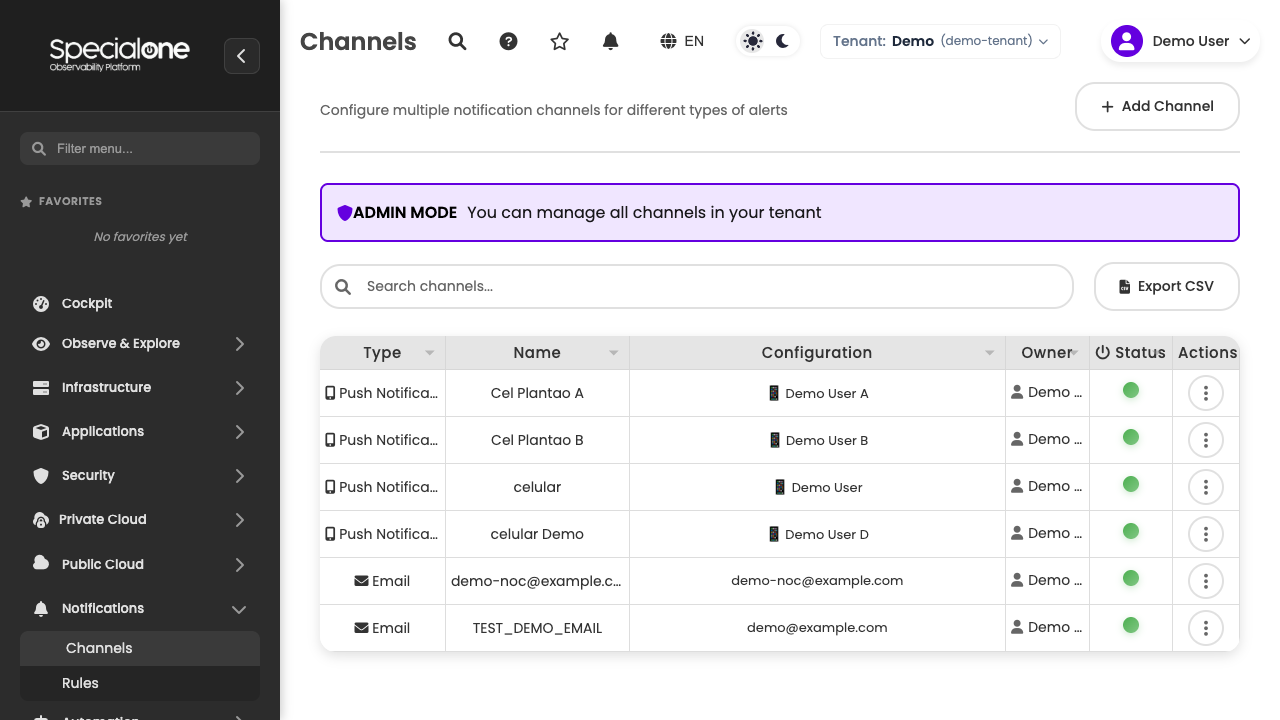
The main table shows every channel visible to your user (see ACL below).
| Column | Content |
|---|---|
| Name | Free-form label you set on creation. This is what appears when you pick the channel inside a rule. |
| Type | Badge with the channel type (Email, WhatsApp, Slack, etc). |
| Configuration | Summary of the destination: partially masked email, truncated URL, number with country code, etc. Enough to identify without exposing the full value. |
| Status | Toggle for Active / Inactive. An inactive channel stays registered but receives no message. |
| Actions | Edit and Delete buttons per row. |
The list is sortable by Name and Type. Use the search box above the table to filter by part of the name or configuration.
Channel types
The platform supports eight channel types. The Channel type picked at creation drives which configuration fields show up.
Email
Sends the alert to an email address. Configure only the destination, e.g. alerts@example.com. One address per channel: for a distribution list, register a single channel pointing at the group alias (e.g. oncall@example.com).
Phone Call
Calls the configured number and plays a voice message summarizing the alert. Use international format with country and area code, e.g. +55 11 90000-0000. Best for Critical alerts outside business hours, when email and Slack do not wake anyone up.
WhatsApp
Sends a WhatsApp message to the given number. Same format as Phone Call, country and area code included: +55 11 90000-0000. Works well for small teams already living on WhatsApp who want the alert in the same place.
Slack
Posts a message to a Slack channel via incoming webhook. Paste the full webhook URL generated in the Slack app configuration, e.g. https://hooks.slack.com/services/T0/B0/X0. A Slack-type SP1 channel points to a single Slack channel: for multiple Slack channels, register multiple SP1 channels.
Microsoft Teams
Posts to a Microsoft Teams channel via incoming webhook. Paste the URL produced by the Teams connector configuration, in the form https://outlook.office.com/webhook/<example>. Same logic as Slack: one SP1 channel per Teams channel.
Webhook
Sends an HTTPS request to an arbitrary URL, with a JSON payload carrying the alert data. Configure the URL (https://api.example.com/alerts) and, optionally, custom headers (authentication, source identification, etc). Use it to integrate with ITSM, internal systems, in-house bots or automated runbooks.
Webhook is the exit door to automation
Anything you want to happen automatically from an alert (open a ticket, restart a service, post in an internal tool) flows out from here. It is worth investing in maintaining an in-house endpoint that consumes this JSON.
Push Notification
Sends a push notification to the SpecialOne mobile app on the user's registered devices. There is no destination field: the channel automatically points at the device tokens registered by the channel owner inside the app. Handy for the on-call engineer to receive things on the phone without relying on SMS or email.
Log in on the app to link the device
For the channel to work, the channel owner needs to open the SpecialOne mobile app on the device and log in with the same platform account. On the first login, the app automatically registers the device token in the channel. Without logging in on the app, no device is linked and the notification has nowhere to go. Every device you log in on joins the destination list for the same channel.
Telegram
Sends a message to a Telegram chat or user via bot. Configure the destination chat ID (or username) and the bot token that will send. A common option for teams already running their operational comms on Telegram.
Creating a channel
Click New Channel at the top of the page. The creation modal opens with the fields below.
- Name: free-form label. Pick something that makes sense when selecting the channel inside a rule. Examples:
Slack #infra-oncall,DBA on-call email,WhatsApp NOC lead,Production ITSM webhook. -
Channel type: dropdown with the eight types above. Picking the type reloads the configuration fields.
-
Configuration: type-specific fields (email, number, URL, headers, etc).
- Enabled: toggle. Leave it on for the channel to go live right away. Saving it off is useful when you are preparing channels ahead of the rules.
Click Save to persist. The channel appears in the list immediately and can already be referenced by a rule.
Test before pinning production to it
After saving, create a test rule pointing a low-severity alert at the new channel and force a fire. If the message never arrived, the issue is in the channel (wrong webhook, number without WhatsApp, typo in the email), not in the rule. Validating in isolation saves hours of debugging in a real incident.
Editing and managing
From the list, each row offers three operations:
- Activate / Deactivate: click the toggle on the Status column. An inactive channel stays registered and referenced by rules, but receives nothing. Useful for silencing a destination temporarily without losing the configuration (e.g. pause a colleague's WhatsApp while they are on vacation).
- Edit: opens the modal pre-filled with the current values. You can change name, configuration and state. The channel type does not change on edit: to move from Slack to Teams, register a new channel and update the rules.
- Delete: removes the channel. Confirm in the dialog. If the channel is referenced by some rule, the platform warns you before deleting so you can fix the rule first.
Delete is not the first option
To stop receiving messages on a channel, deactivate instead of deleting. Delete is final and breaks any rule still pointing at it. Deactivating keeps the history and lets you turn it back on later without reconfiguring.
Who sees what (ACL)
The platform controls channel access at three levels. The channel always belongs to an owner (creating user) and is bound to the current tenant.
| Role | What they see | What they do |
|---|---|---|
| Regular user | Only the channels they created themselves. | Create, edit, activate/deactivate and delete their own channels. |
| Tenant admin | Every channel in the tenant, owned by anyone. | Can edit and delete other people's channels, useful for cleaning up orphan channels when someone leaves the team. |
Personal channel vs team channel
A team-wide Slack should be created by an admin (or at least by someone stable on the team). If the channel creator leaves and the account is disabled, the tenant admin still manages the channel, but it is worth reviewing periodically.
Best practices
One channel per team and severity
Instead of a single Slack receiving everything, create separate channels by team (infra, database, network, applications) and, within the team, by severity when it pays off (#db-critical for Critical, #db-general for the rest). The separation actually happens in the notification rule, but it starts with having the right channel registered.
Test the channel before production
Whenever you register a new channel, force a test fire before pinning a critical rule on it. A typo'd webhook, a number without active WhatsApp and a Telegram bot without the right permission are problems that only surface during the real alert, when the worst has already happened.
Name them well
Email is a bad name. DBA night on-call email is a good name. The rule dropdown shows that name verbatim: clear naming prevents the wrong rule from pointing at the wrong channel, which is exactly the mistake notification rules exist to prevent.
Next steps
-
Notification rules
Configure which alert goes to which channel, in which time window and with what frequency.
-
Alerts
See the alerts currently open and understand what is being notified.
-
Concepts
Full platform vocabulary: alert, severity, channel, notification rule.