Administration
The Service Management Admin area is where the tenant admin shapes the operation: catalog, SLA targets, queues, team, labels and knowledge links. Every rule follows the same scope: ticket type plus catalog category (all, include or exclude), which makes it predictable to reason about where each configuration acts.
To set up an operation from scratch, the natural order is:
- Catalog: define families, services and subcategories (what the requester picks when opening).
- Queues and team: create the teams, add people and set profiles.
- SLA: start with the default target and refine per service.
- Labels and documentation: the finishing touches for whoever opens and whoever handles.
Service catalog
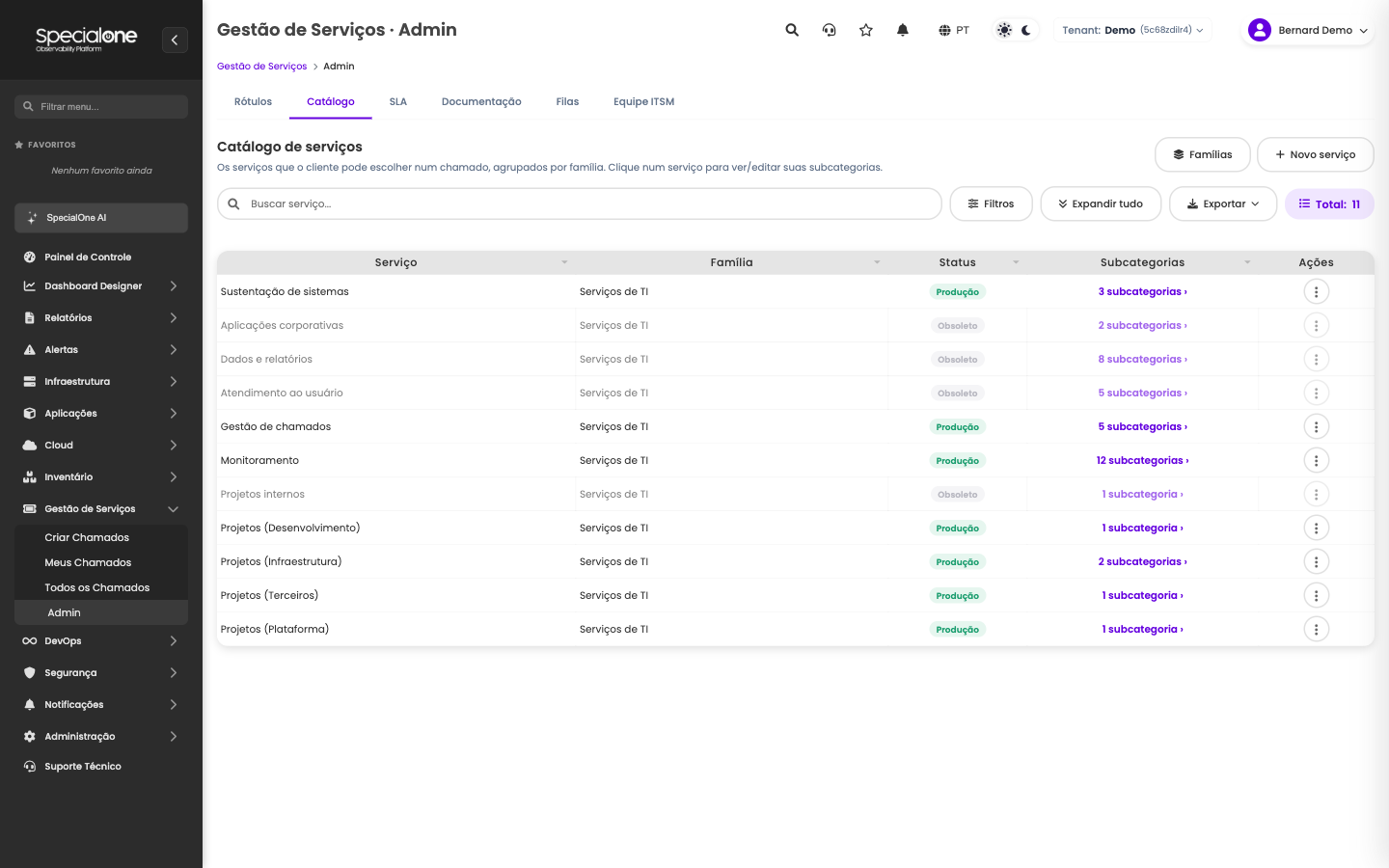
The catalog is the ticket menu: families group services, which have subcategories. The hierarchy matters because almost everything in Service Management hangs on it: SLA targets, automation routing, knowledge links and the list filters all use family, service and subcategory as scope.
Worth knowing:
- The subcategory defines whether the ticket is born as an incident (something broke) or a request (someone needs something). The requester picks the subject, not the type.
- Service status: an obsolete service leaves the opening options, but old tickets stay intact and searchable.
- Click a service to view and edit its subcategories; the Families button manages the level above.
- Good practice: keep the catalog lean. Fewer well-named options route better than dozens of lookalike subcategories, and the team adjusts the classification during handling when needed.
SLA targets
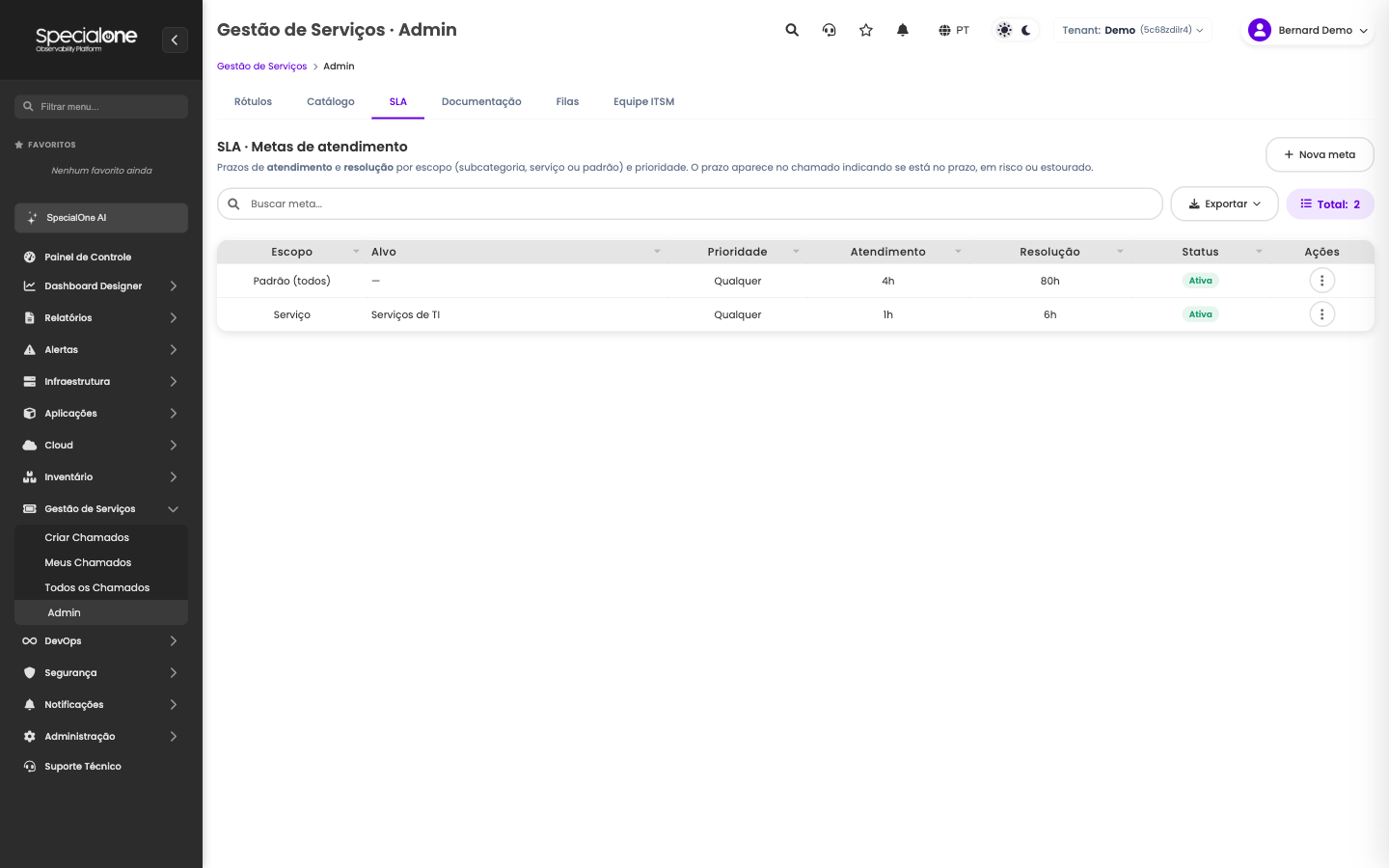
Each target defines response (first reply) and resolution deadlines, by scope: a default target covers everything, and specific targets per service or subcategory refine where it matters, optionally varying by priority. The most specific target wins: subcategory beats service, which beats the default.
A practical example from the screen above: the tenant default is 4h response and 80h resolution, but the most sensitive service has its own 1h and 6h target. A ticket from that service uses the tight target; everything else follows the default.
How the deadline is charged:
- The clock runs 24x7 from opening.
- A Pending ticket pauses the count: time waiting on a third party or the requester is deducted, the SLA measures the team, not the world.
- Inside the ticket, the SLA panel shows both targets with the computed deadline and a real-time state (on time, at risk, breached).
- The SLA Compliance reports use exactly the same criteria, no divergence between the screen and the board number.
Queues / Teams
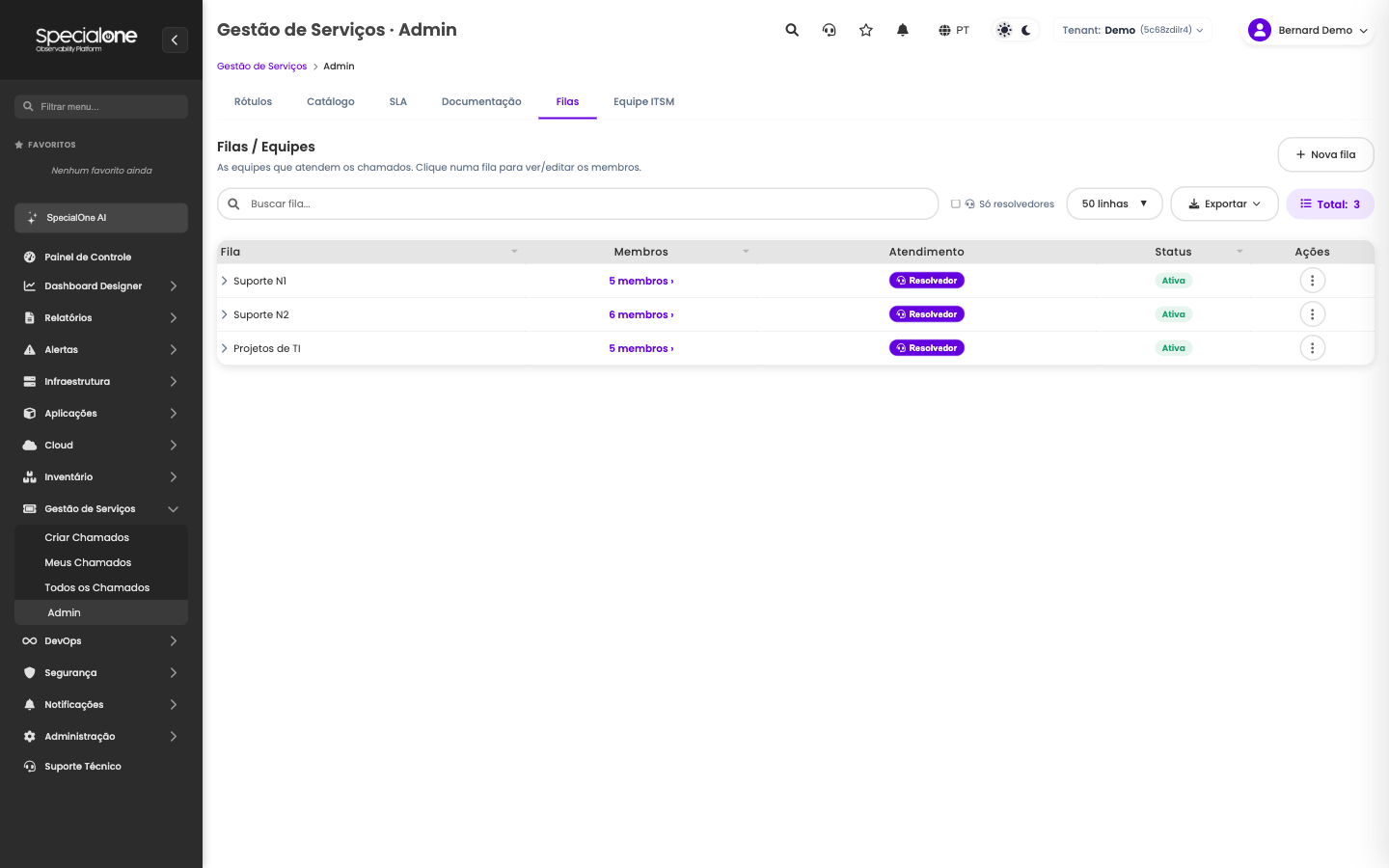
Queues are the teams that handle tickets. Each queue has members, a status (active or not) and the Resolver flag: only resolver queues appear in the ticket assignment options, which separates handling teams from organizational groups. Click a queue to view and edit its members.
Queues feed distribution: a new ticket without an owner can be delivered automatically to available members (including round-robin, via Service Management automations), and the Team filter on the ticket list sees exactly these queues.
Team profile management lives in the ITSM Team tab (see Profiles and permissions).
Labels
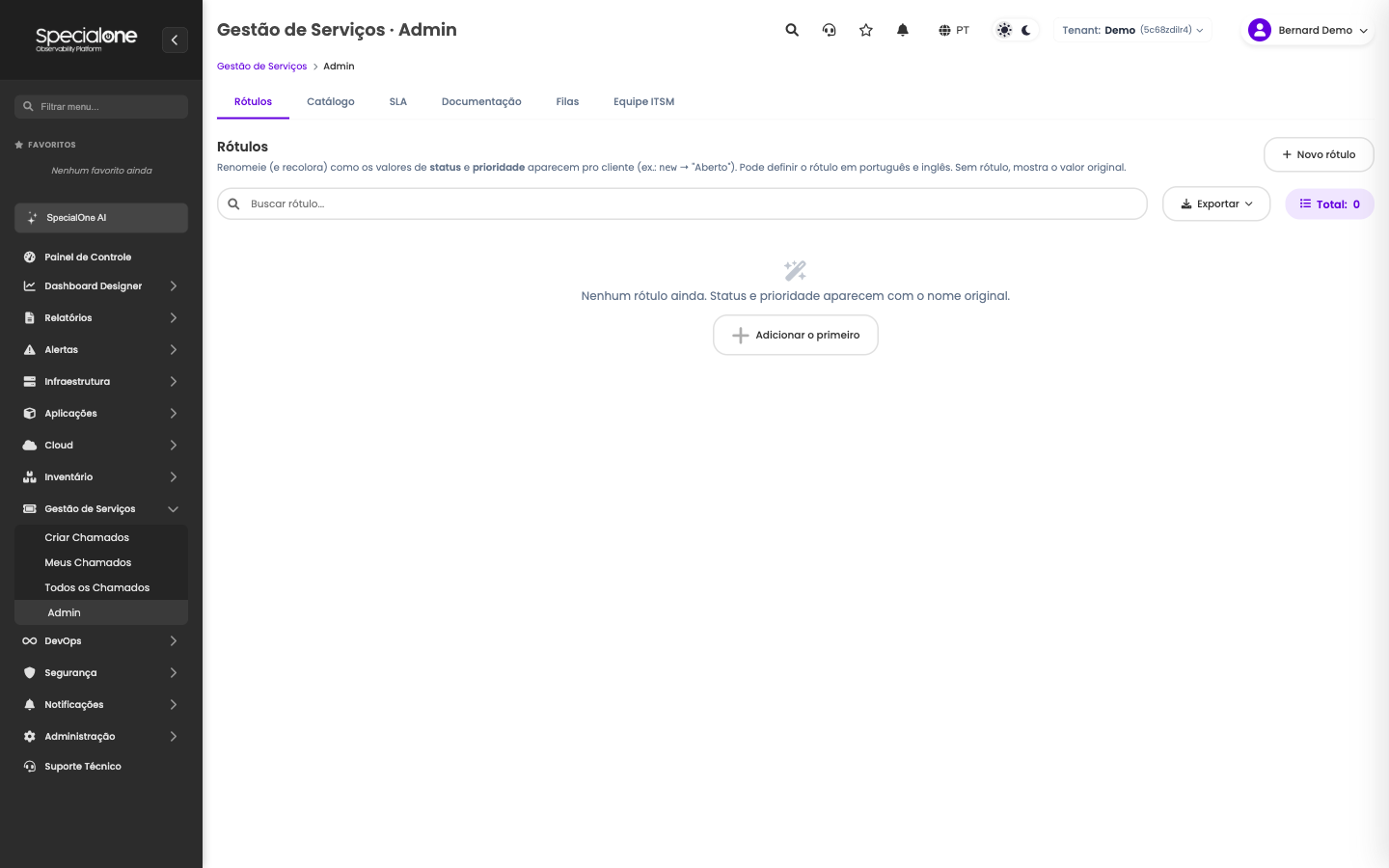
Technical status and priority names do not always speak your user's language: "new" says little to whoever opened the ticket. Labels solve that: they rename (and recolor) how each status and priority value appears on screen, without touching the flow underneath.
Each label defines:
- Scope: ticket type (all, incidents only or requests only).
- Field and original value: which status or priority is being renamed
(e.g.
new). - How it appears: the text in Portuguese and, optionally, in English, each user sees their own session language.
- Color and group: the badge color on screen and an optional grouping.
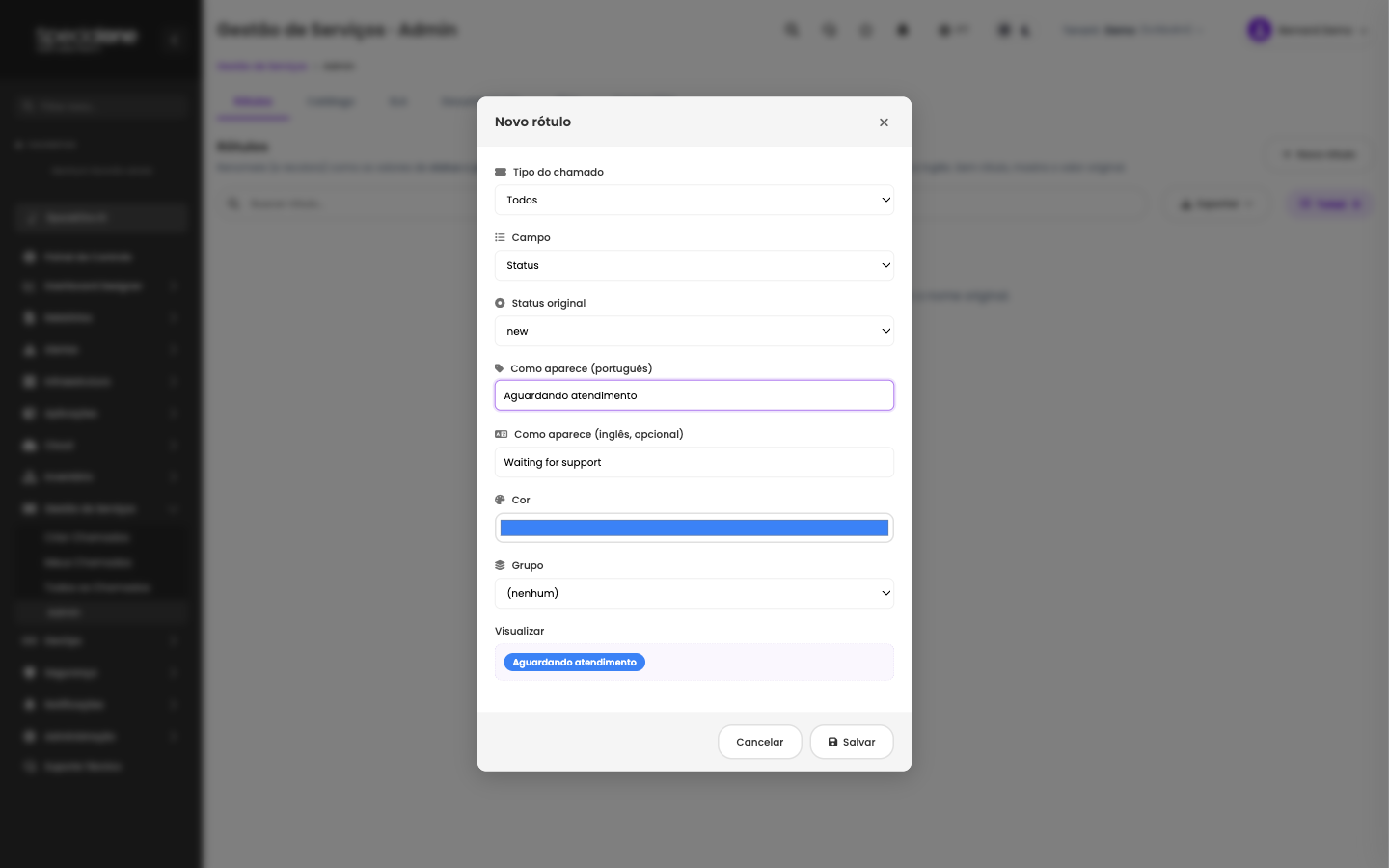
The modal previews the badge as you edit. In the example, the new status
becomes Aguardando atendimento in Portuguese and Waiting for support
in English, across every screen: list, ticket and reports. Without a label,
the original flow name is shown.
Documentation (knowledge links)
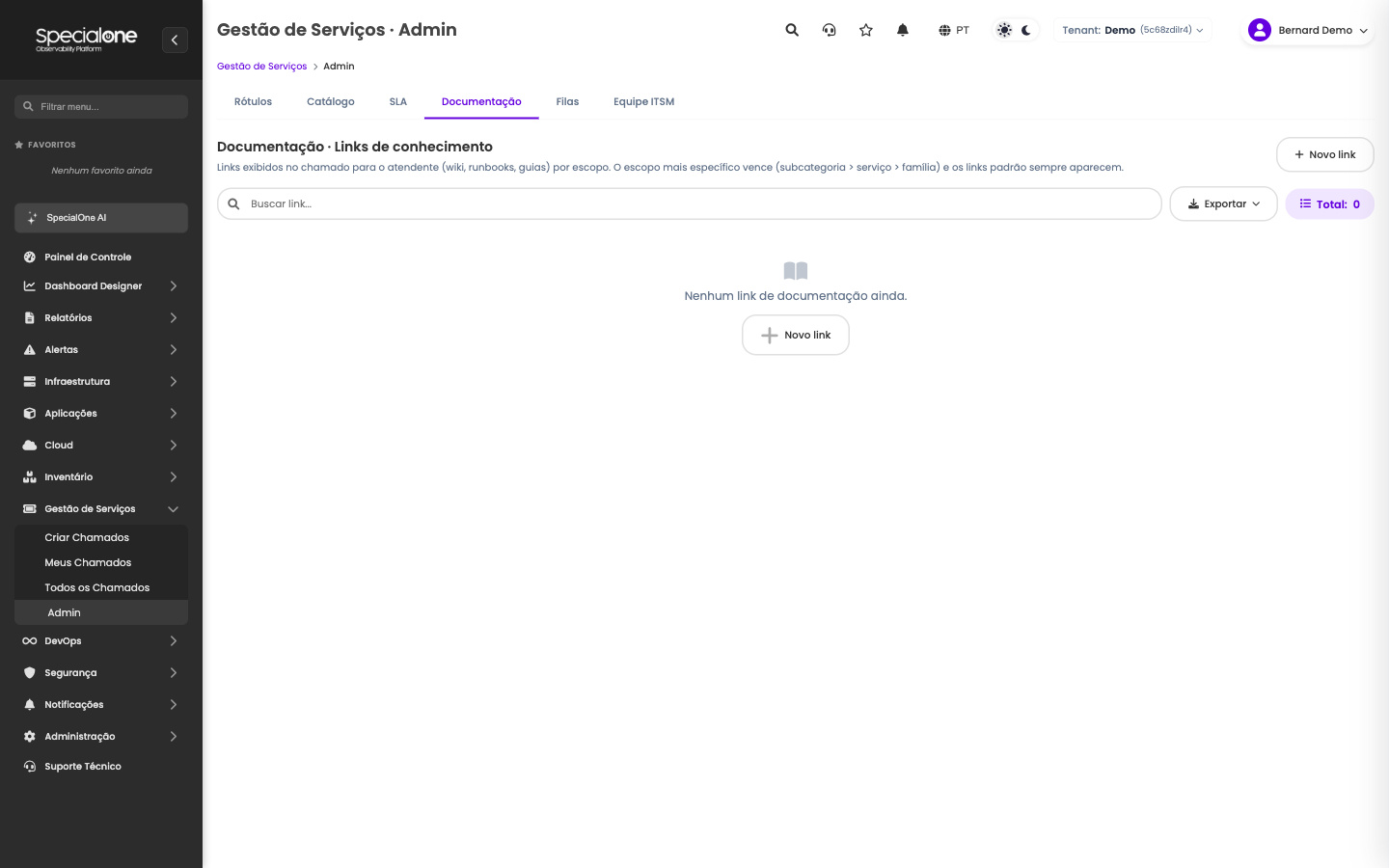
Wiki, runbook and guide links that show up inside the ticket for the agent, picked by the ticket scope: the most specific link wins (subcategory, then service, then family) and default links always show. It brings the knowledge base to where the work happens.