Automations
An automation links a trigger to an action: when something happens (an alert, a ticket, a scheduled time), the platform dispatches a runbook to run on an agent. This page covers the triggers, the two kinds of automation (by alert and by ticket), plus schedules and the execution history.
Reach it under DevOps → Automations.
Who uses it
- SRE and on-call: build auto-remediations for the most repetitive alerts.
- Support and operations: automate routine ticket handling and run runbooks on demand.
The list
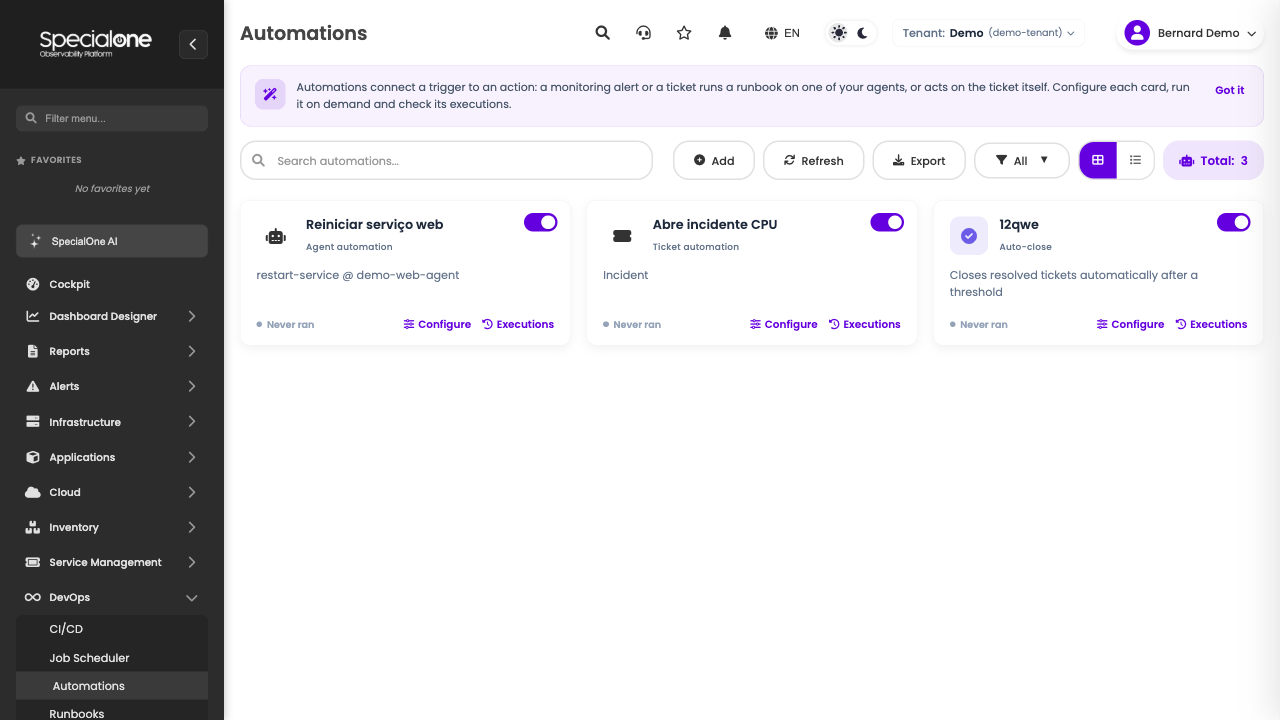
The screen shows automations as cards, grouped by family: Observability (fired by alert) and Service Management (fired by ticket). Each card leads to Configure and Executions. The Add button opens the palette of types available to your tenant.
The triggers
The trigger is the "when" of an automation. There are three, and the same runbook library serves all three:
| Trigger | Fires when | Configured in |
|---|---|---|
| Alert | monitoring detects a problem in the scope you defined | Observability automation (below) |
| Ticket | a ticket comes into a category you defined | Service Management automation (below) |
| Schedule | the set time arrives (every N minutes or daily) | Job Scheduler |
Each agent gathers, in one place, everything that fires it: in the agent's menu under Agents & Identities, the Triggers option lists the alerts, tickets and schedules that dispatch work to it.
Alert automation (Observability)
This is the classic auto-remediation: an alert fires and the agent acts. The automation detail has four tabs: Action, Trigger, Run now and Executions.
Action tab
Defines what runs: the agent and the runbook. Here you also see which alert data is sent to the script (hostname, alert name, severity, status, alert id and tags) and can add extra fixed parameters.
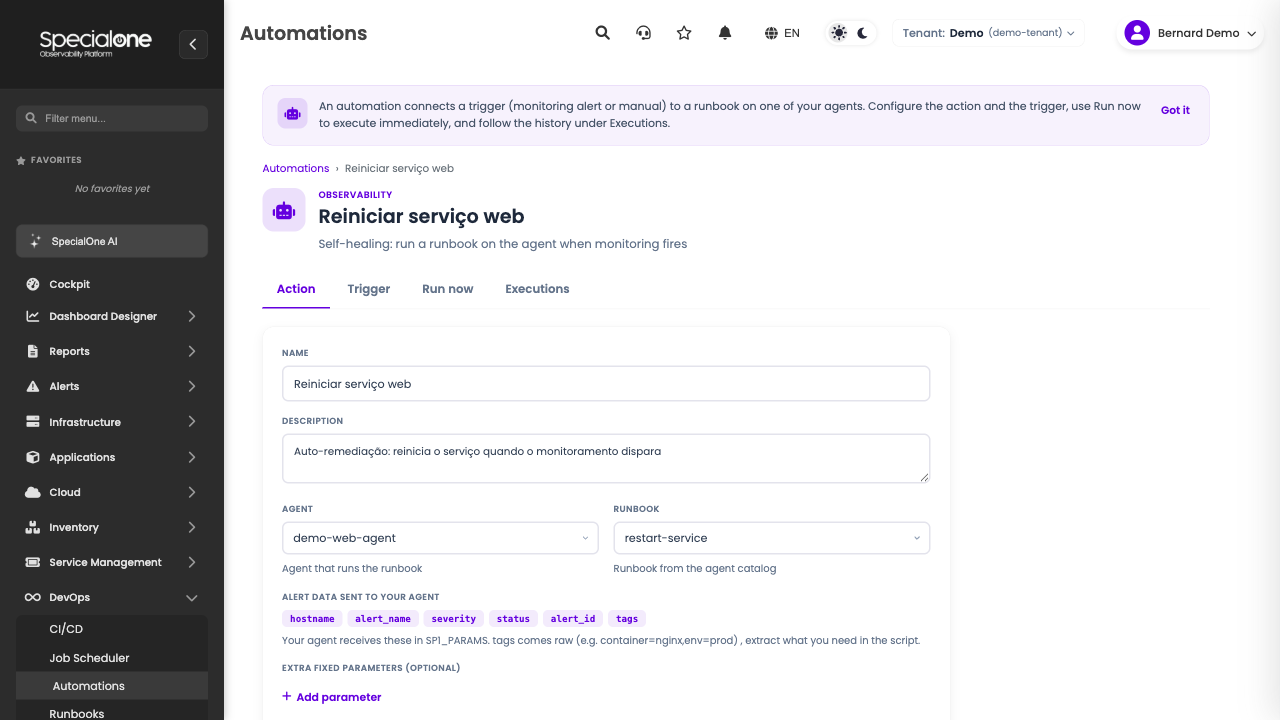
The alert data reaches the runbook in SP1_PARAMS (the full list of fields is in Runbooks → Which fields you receive). The script reads what it needs; none of it is treated as code.
Trigger tab
Defines when it runs. The first field picks the mode:
- On alert: fires on its own when an alert matches the scope (the normal case).
- Manual only: never fires on its own, only from the Run now tab. Useful for a runbook you want handy but not automated.
In on alert mode, you shape the scope with four filters:
| Filter | What it does | Example |
|---|---|---|
| Host | limits to hosts matching the pattern (wildcard * allowed) |
web* catches web01, web02, webproxy |
| Alert name | limits to alerts whose name matches (wildcard allowed); empty matches any alert | *CPU*, Service down* |
| Severity | one or more levels | Critical, High |
| Tags | matches if the alert has any one of the tags | apache, http |
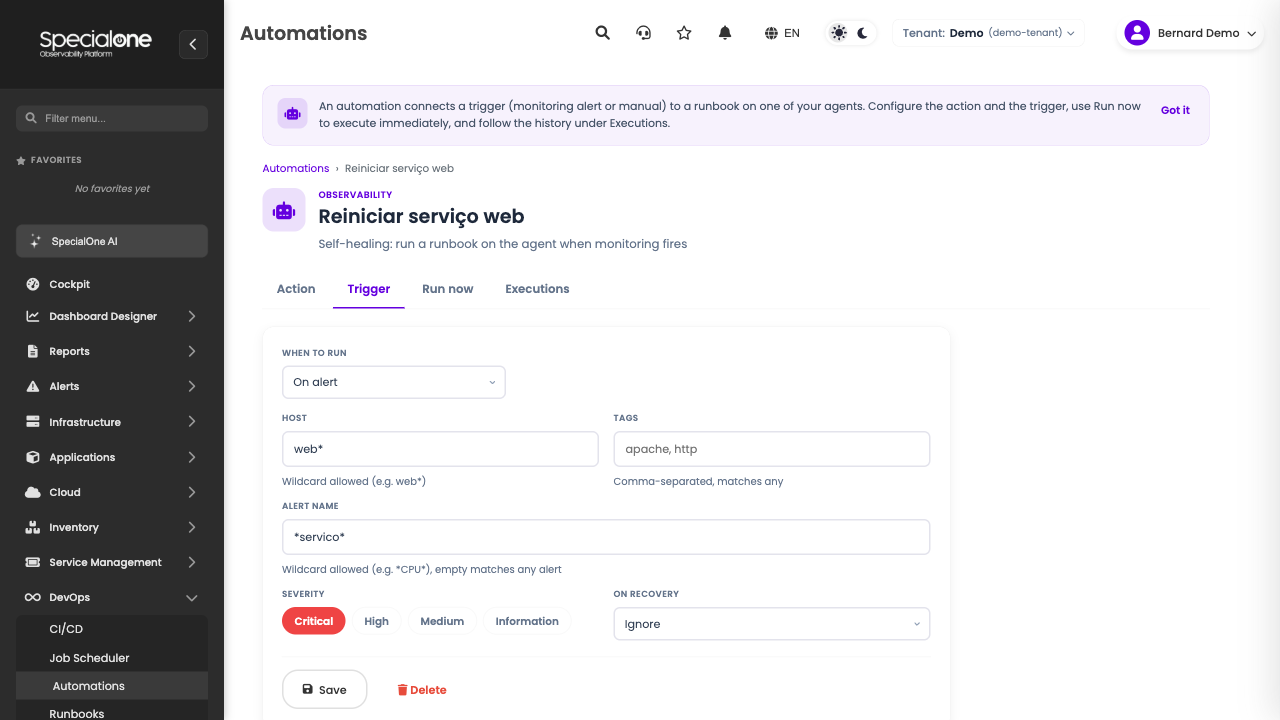
Filters combine with AND, tags with OR
The automation only fires when the alert meets all the filled-in filters at once (host and name and severity). Within the Tags field, just one tag needs to match. Leave a filter empty to not restrict by it. Start narrow (one host, one severity) and open up, it is safer than the other way around.
Still in the Trigger, two important points:
- Target the host that alerted: on the Action tab, add a parameter named
limitmapped to thehostnamefield. Then, in an Ansible runbook,--limitrestricts the run to the exact host that fired, instead of running on the whole group. - On recovery: choose whether the automation also runs when the alert clears (
Run again) or ignores the recovery (the default). Running on recovery is useful, for example, to reopen traffic after a service comes back.
Run now tab
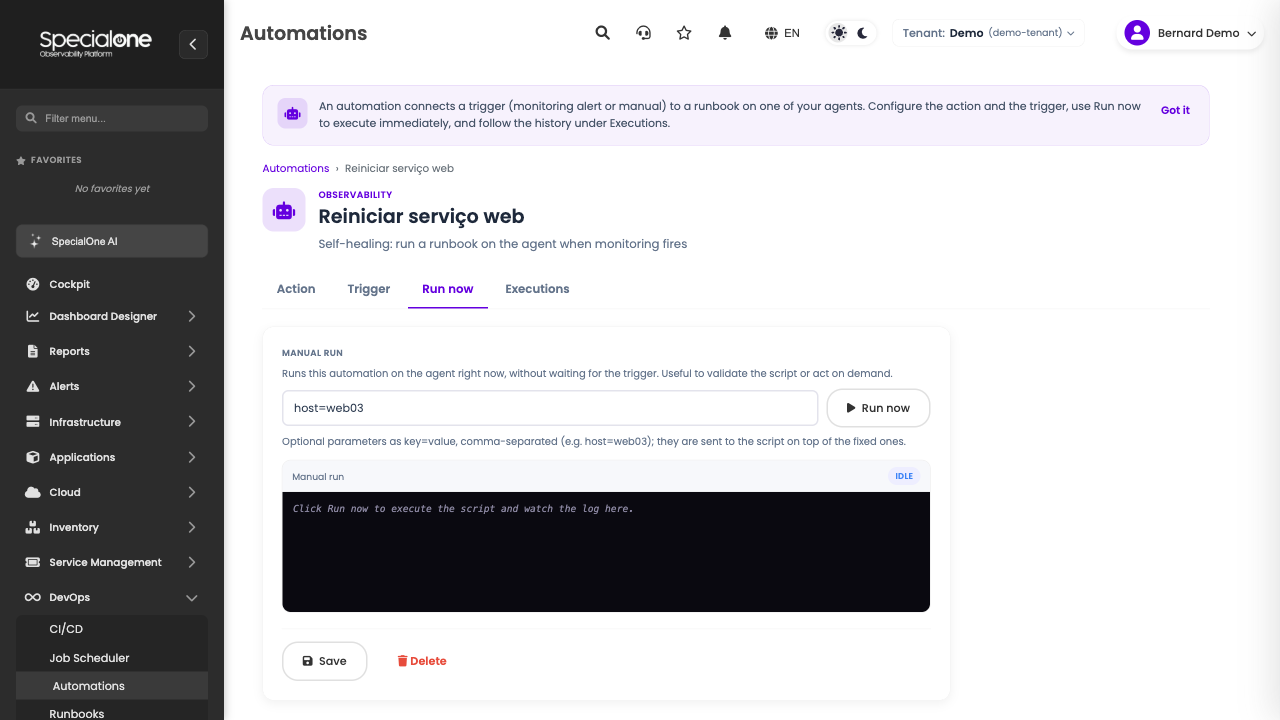
Runs the automation right away, without waiting for the trigger. Useful to validate the runbook or act on demand. Enter optional parameters as key=value (e.g. host=web03), click Run now and the log shows up there, live.
Executions tab
The history of this automation: when it ran, the status, the origin and the log of each execution.
Ticket automation (Service Management)
Here the trigger is a ticket: when a ticket comes into a category you defined, the agent runs the runbook, and the runbook can even reply back on the ticket itself (see Examples → Handle a ticket). It is the Ticket triggers agent type, in the Service Management family.
To create it, under Add choose Service Management → Ticket triggers agent. The configuration has three parts:
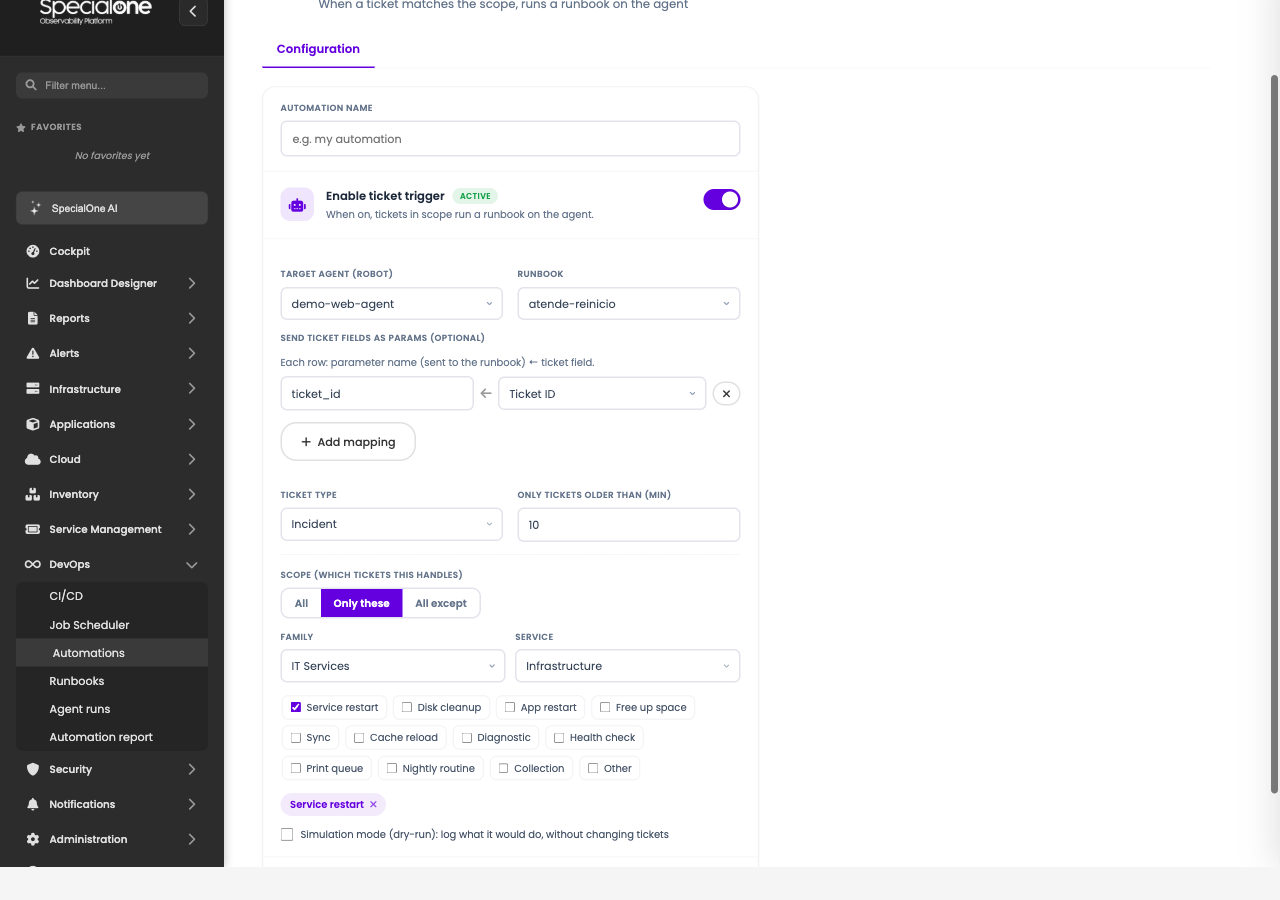
1. Action (agent and runbook). Choose the agent that will run it and the runbook (the list shows your tenant's catalog of active runbooks).
2. Parameter map (optional). Each row sends a ticket field to a runbook parameter (the full list is in Runbooks → Which fields you receive). For the runbook to reply on the ticket afterwards, map the ticket ID to a parameter (e.g. ticket_id ← Ticket ID).
3. Scope (which ticket fires it). This is where the category comes in:
- Ticket type: Incident or Request.
- Minimum age: only fires on tickets older than X minutes (avoids acting on a ticket the requester is still editing).
- Category scope: All, Only these or All except. In "Only these" (or "All except") mode, you pick by Family → Service → Subcategory, which is your Service Desk's category tree. The picks become chips, and the automation only acts on tickets in those categories.
Always validate in simulation first
The ticket automation has a simulation mode (dry-run): turn it on and the automation shows which tickets would match, without running anything or touching the tickets. Check the scope, then turn simulation off. It is the safety net so you do not fire on too broad a scope.
The Run now button runs the automation immediately over the tickets currently in scope (respecting simulation, if on), useful to test without waiting for a new ticket.
Requires Service Desk configured
The ticket automation only appears for tenants with the Service Desk module active, because the scope reads your Service Desk's category tree. Without it, you still have alert automations and schedules.
Schedules
When you do not want to wait for an alert or a ticket, a schedule runs the runbook at fixed times: every N minutes or daily at an hour and weekdays. It replaces cron scattered per machine, centralized and with history.
Reach it under DevOps → Job Scheduler.
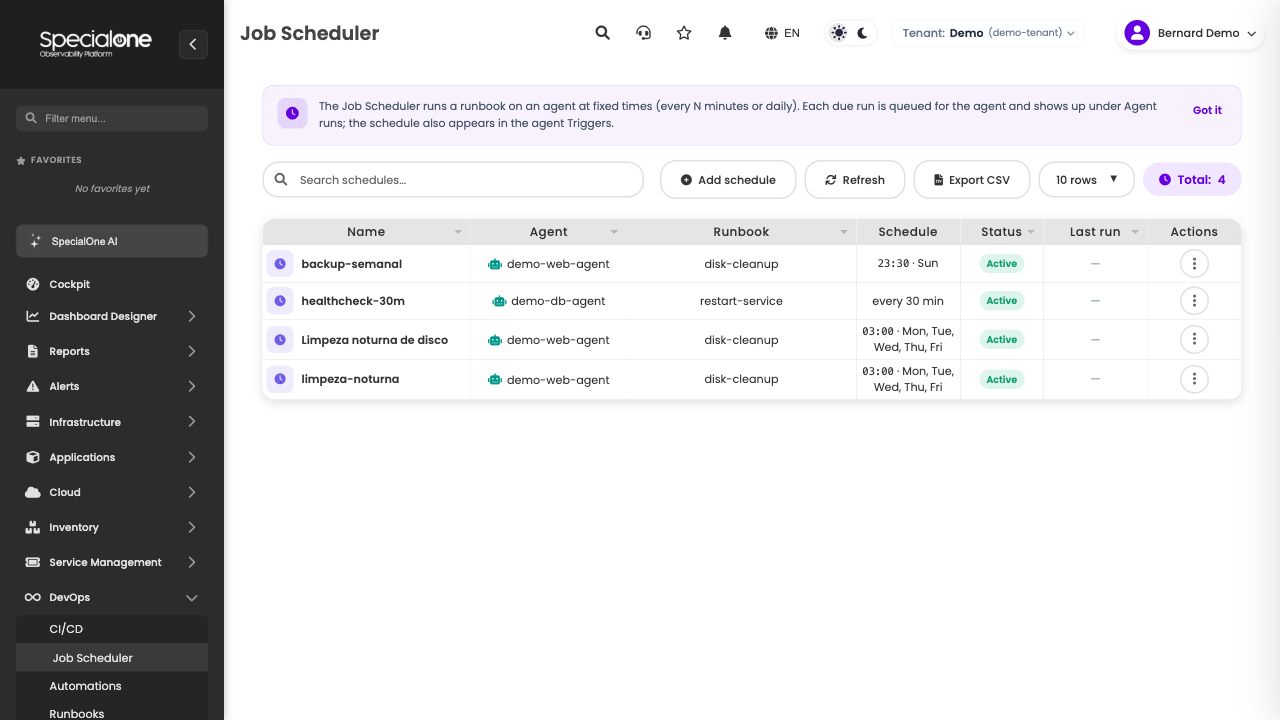
When creating, choose the agent, the runbook, the frequency (interval or daily) and activate it. Each firing enters the agent's queue and shows up in Executions; the schedule also appears in the agent's Triggers. Step-by-step in Examples → Scheduled cleanup.
A schedule runs on an agent, not on the platform
The work is queued for the agent in that environment, which runs it locally. If the agent is down, the executions stay in the queue until it comes back (and you can cancel them, see below).
Executions
Every time a runbook runs, whether by alert, ticket, schedule or manual, it becomes an execution. The screen gathers the history of all agents in the tenant.
Reach it under DevOps → Agent runs.
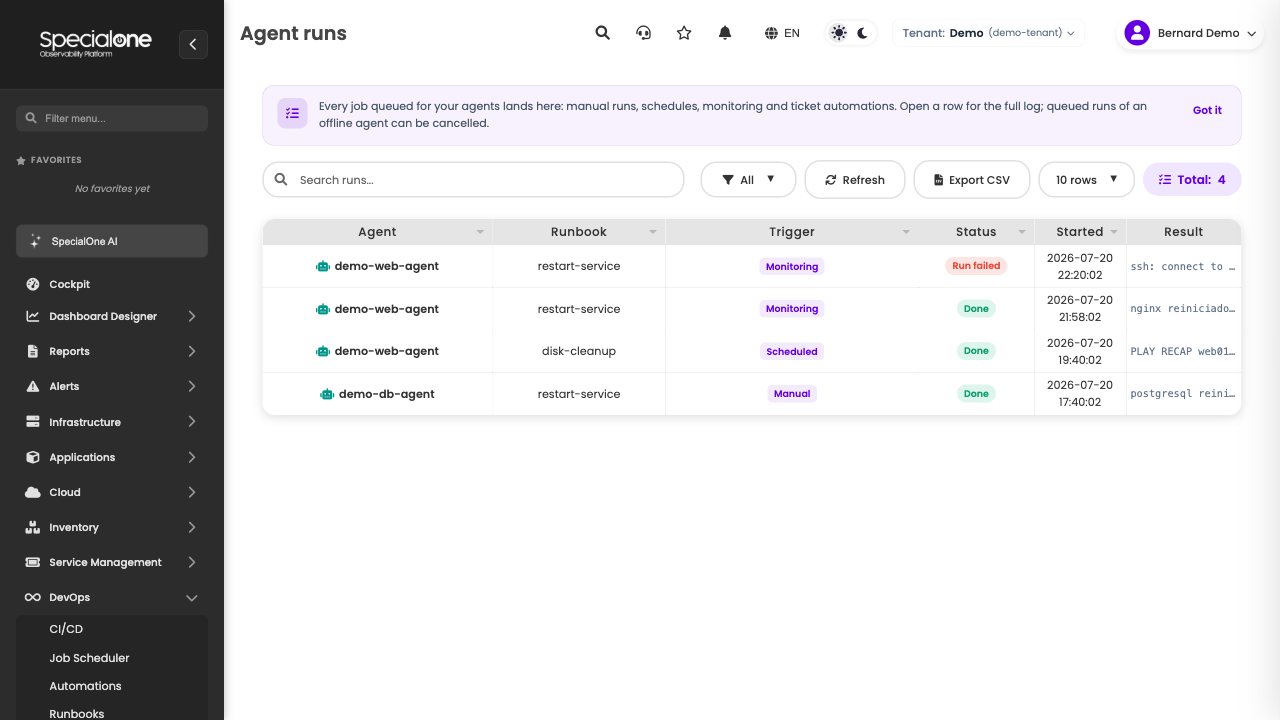
Click a row to see the full log and the parameters. The Origin column tells which trigger fired it (Manual, Monitoring, Ticket, Scheduled). Executions queued for an offline agent get a warning and can be cancelled (they will not run until the agent comes back). Filter by status and search by agent or runbook.
Report
The Automation report consolidates what your automations delivered in the period: auto-handled tickets, completed agent executions, estimated time saved and agents online. Each card, type and agent leads to the detail (the filtered execution list).
Reach it under DevOps → Automation report.
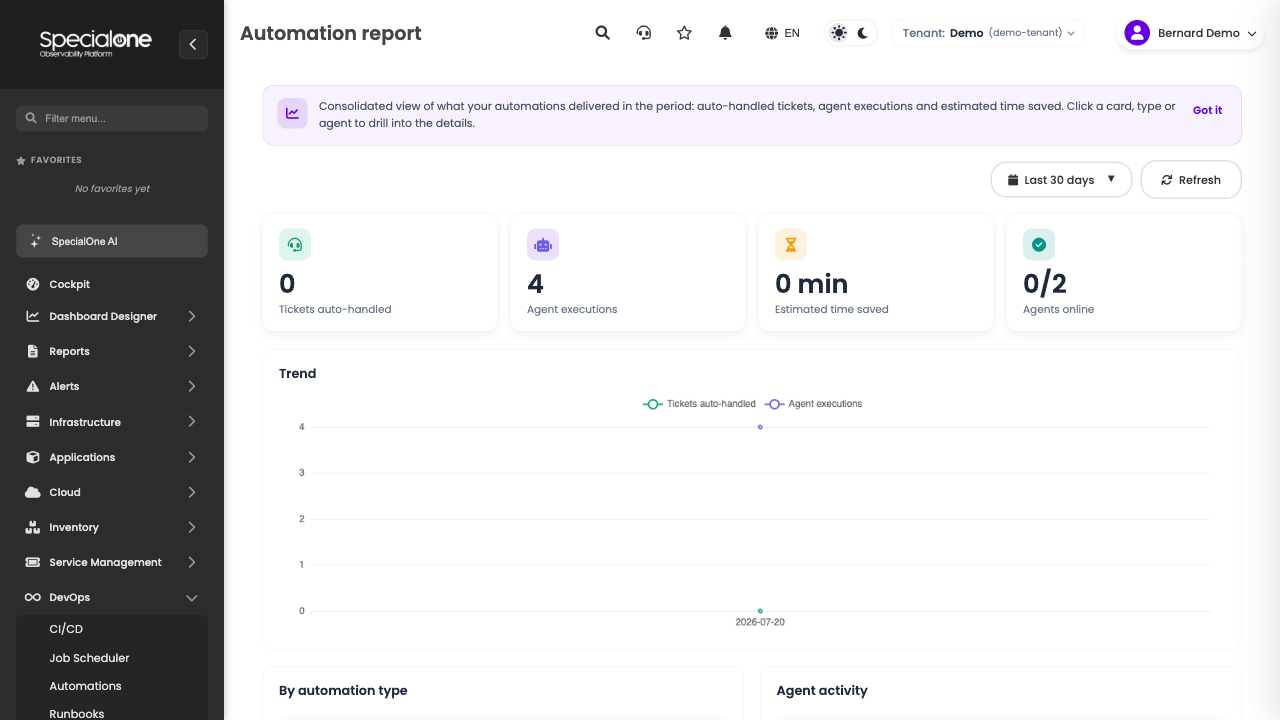
Completed executions, not queued ones
The report counts the executions that finished in the period. What is still queued shows up separately and does not inflate the numbers. Time saved starts from the tickets resolved by automation in the Service Desk plus completed alert remediations, with per-action minutes tuned to your environment; hover the card to see the math.
Next steps
-
Ready-made examples
Complete recipes for both triggers (alert and ticket), to copy and tune.
-
Review the agents
Installation, inventory and lifecycle of the agent that runs all of this.