Maintenances
Maintenance windows silence alerts for a set of hosts during a defined interval. They cover planned deploys, scheduled downtime, hardware swaps, and any activity that the team already knows will generate noise.
During the window the platform keeps collecting data and alerts keep being generated normally, but no notification rule fires for the included hosts. When the window ends, the behavior goes back to normal automatically.
Reach it from Administration → Maintenances.
A maintenance window does not turn monitoring off
The collector keeps working, metrics keep being stored, history keeps being written. What changes is the notification side only: nobody gets paged for a host that is inside an active window.
Who uses it
- Admins who need to create windows for deploys scheduled by the development team.
- SRE / Operations who open windows for infra work (disk replacement, cluster upgrade, hypervisor reboot).
- NOC who consults the list to understand whether an expected silence covers an alert that is showing up in History without notification.
Creating and editing windows is restricted to tenant admin (see ACL).
KPIs and tabs
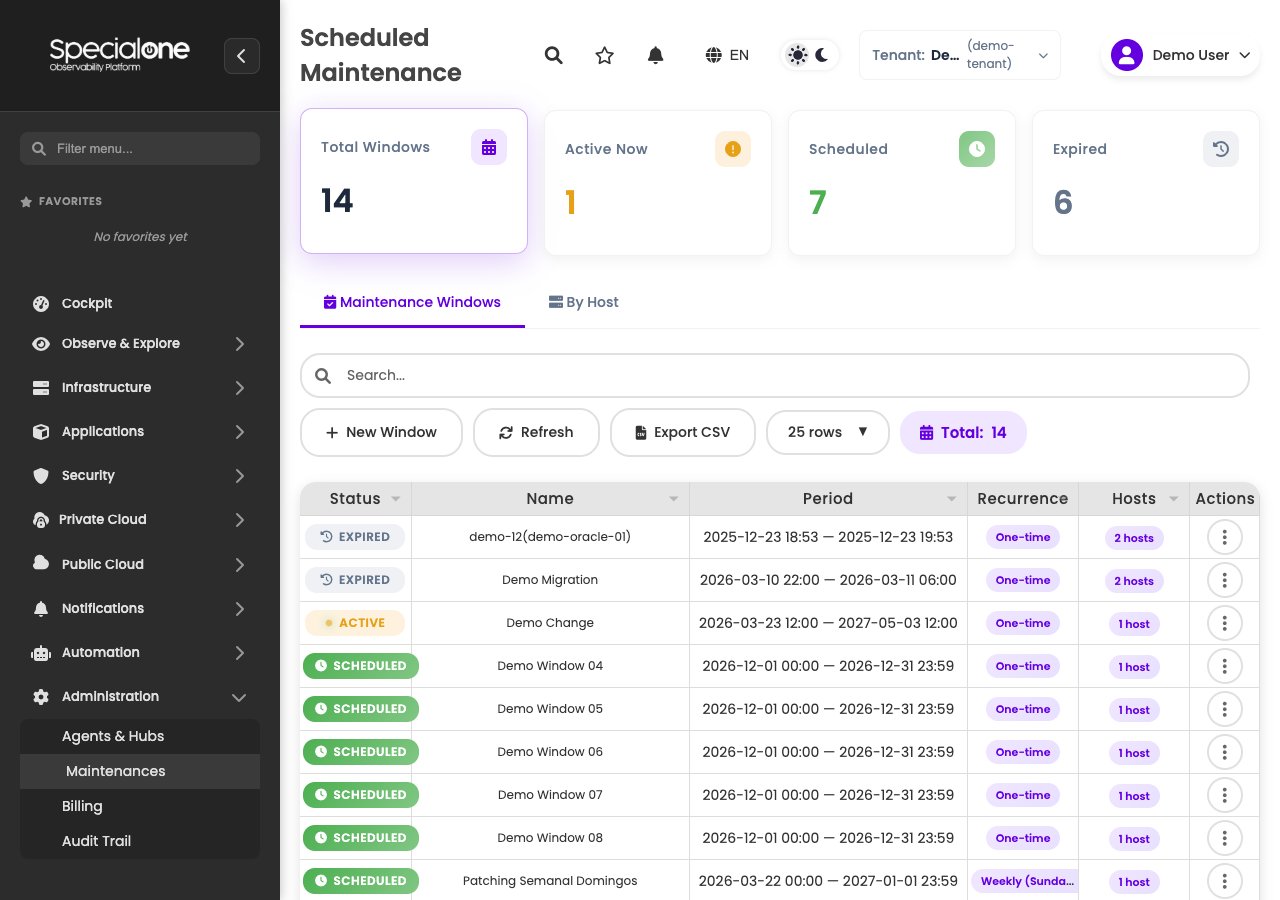
The four cards on top summarize the state of the tenant's windows. All are clickable and filter the table below.
| Card | What it counts |
|---|---|
| Total Windows | Sum of every registered window, regardless of state. |
| Active Now | Windows running at this moment. Pulsing amber indicator. |
| Scheduled | Future windows that have not started yet. Green indicator. |
| Expired | Windows that already ended. Gray indicator. |
Clicking a card filters the table by the matching status. Clicking again clears the filter.
Below the cards, two tabs:
- Maintenance Windows (default): the complete list, one row per window.
- By Host: alternative view grouped by host, useful to quickly answer "is this server in maintenance right now?".
The windows list
Above the table sit the controls:
- Search: free-text filter over name and description.
- New Window: opens the creation form.
- Refresh: reloads the list (no auto-refresh here, to avoid reloading while you are editing something).
- Export CSV: produces a file with the currently filtered windows.
- Rows per page: 10, 25 (default), 50 or 100.
The table has the columns:
| Column | Content |
|---|---|
| Status | Badge: Active (amber), Scheduled (green), Expired (gray). |
| Name | Short window name. Shows up in reports and audit. |
| Period | Start and end with date and time in the user's timezone. If the browser does not report a timezone, falls back to America/Sao_Paulo. |
| Recurrence | Text summary of the rule (One time, Daily 02:00 (2h), Weekly: Mon,Wed,Fri 02:00 (2h), Monthly: day 15). |
| Hosts | Number of hosts covered. Clicking opens a modal with the full list. |
| Actions | Edit and delete. |
On environments with many recurring windows, sort by Status to push Active Now rows to the top.
"By Host" tab
The By Host tab inverts the view: instead of "one row per window covering N hosts", you see "one row per host with N windows".
| Column | Content |
|---|---|
| Host | Host name. |
| Active Windows | How many windows are silencing this host right now. |
| Scheduled Windows | Future windows that will cover this host. |
| Next Maintenance | Date and time of the next window starting. |
Use this tab when someone asks "is db-prd-cluster in a window?" and you need to answer in two seconds without mentally figuring out which of the 12 listed windows cover it.
Create a window
The New Window button opens a modal with three blocks:
-
Identification
- Name (required): short, descriptive text. Shows up in history, audit, and reports.
- Description (optional): extra context. Best practice is pasting the change ticket or issue link.
-
Recurrence: defines when the window fires. Four types, detailed in the next section.
-
Hosts: selector with search and checkboxes. At least one host is required.
Footer buttons are Cancel (discards) and Save (creates or updates). The modal validates before saving: empty name, inverted interval (end before start), zero hosts selected, all surface as a clear error message.
Recurrence
The platform supports four recurrence types. The choice appears as a dropdown at the top of the block and swaps the fields below.
One time
Single window, no repetition. The most common case: deploy scheduled for Saturday at 11pm, disk replacement Wednesday morning.
Fields:
- Start: datetime picker (date + time).
- End: datetime picker.
Example: production deploy planned from 2026-06-07 22:00 to 2026-06-08 02:00. Four hours of silence, nothing more.
Daily
Window that runs every day (or every N days) at the same time.
Fields:
- Valid from / to: dates that bound the recurrence (the window only fires inside this calendar interval).
- Start time: hour of the day when the window begins.
- Duration (in hours): how long each occurrence lasts.
- Interval: every
Ndays (1 = every day, 2 = every other day).
Example: backup routine that silences everything from 02:00 to 04:00 every day for an entire month. Valid from 2026-06-01 to 2026-06-30, start time 02:00, duration 2, interval 1.
Weekly
Window tied to one or more days of the week.
Fields:
- Valid from / to.
- Days of the week: checkboxes for Mon, Tue, Wed, Thu, Fri, Sat, Sun.
- Start time and Duration.
- Interval: every
Nweeks.
Example: OS patching window every Monday, Wednesday and Friday at 03:00 for 1 hour. Check Mon, Wed, Fri; start time 03:00, duration 1, interval 1.
Monthly
Window that fires on a specific day of the month.
Fields:
- Valid from / to.
- Day of the month: 1 to 31.
- Months: individual checkboxes or "all months".
- Start time and Duration.
- Interval: every
Nmonths.
Example: storage maintenance on the 15th of every month, from 23:00 to 02:00 of the 16th. Day 15, all months, start time 23:00, duration 3.
Day 31 on short months
If you pick day 31, the window is skipped on months that do not have a 31st (February, April, June, September, November). To cover "last day of the month", use day 28 or create separate windows.
Selecting hosts
The Hosts block inside the modal is a selector with:
- Search: field on top. Type part of the name (
db-prd) to narrow the list. - Checkboxes: mark the hosts included in the window.
- Select All: marks every host visible under the current filter. Useful for "all production web servers" after searching
web-prd-. - Removable chips: each selected host becomes a chip above the list, with
×to remove without having to find it again.
The selection is persisted in the modal: changing the search filter does not deselect what you already added. You can search db-prd, mark three, clear the filter, search web-prd, mark five more, and save with eight hosts.
Naming conventions pay off here
Patterns like srv-app-01, db-prd-cluster, web-prd-checkout make selection much faster. If your naming is chaotic, consider fixing that in the inventory before trying to maintain dozens of windows.
Window status
The Status in the table and KPIs is computed in real time from the period and the recurrence:
| Status | Meaning |
|---|---|
| Active | The current instant falls inside an occurrence of the window. Notifications are being suppressed. |
| Scheduled | The next occurrence has not started yet. Suppressing nothing right now. |
| Expired | The window has valid until in the past and no future occurrence. Can be deleted with no impact. |
Recurring windows alternate between Active and Scheduled depending on the time of day. A daily window from 02:00 to 04:00 sits as Scheduled during daytime, flips to Active at 02:00 and returns to Scheduled at 04:00, for its full validity period.
What happens during the window
Platform behavior with an Active window covering certain hosts:
- Collection: keeps running normally. Metrics keep being written to history.
- Alert generation: the event is created normally. Appears in Alerts and in History with the real duration.
- Notification: no rule fires. Slack, email, webhook, ITSM, all stay silent for the included hosts.
- Control Panel and dashboards: reflect reality. If a host has a problem, the chart shows it. The window only affects notification, not visualization.
Hosts outside the window follow the normal flow: they alert and notify as usual.
A window does not hide the problem from the operator
If the shift is watching the wall, the alert still shows up red on the list, even inside the window. The difference is that the phone does not ring. Use the window status in History to tell "expected noise" apart from "noise that slipped through".
Edit and manage
Each row in the table has two buttons under Actions:
- Edit: reopens the same creation modal with the fields prefilled. Works on Scheduled, Active and Expired windows.
- Delete: removes the window. Shows a confirmation. The deletion is recorded in Audit Trail.
Editing an Active window propagates immediately: shrinking the interval ends the silence sooner; removing a host puts it back into notification right away.
Delete does not restore retroactive notifications
Deleting an Expired window changes nothing about the alerts that ran silenced inside it. The event record already exists and stays as it is.
ACL
The whole page is restricted:
| Role | Access |
|---|---|
| Tenant Admin | Full within the tenant they are logged into: create, edit, delete and list windows. |
| Regular user / Operator | None: the menu item is hidden and the URL returns denial. |
Every create, edit and delete action is logged in Audit Trail with user, action, timestamp and field diff.
Good practices
Name it for what and why
Checkout deploy 2026-06-07 beats Maintenance #4521. Whoever picks up the shift tomorrow can understand the reason without opening the ticket.
Paste the ticket in the description
Use the description field to paste the change ticket or issue link. When someone asks "why was that host silenced at 03:00?", the answer is one click away.
Start the window a few minutes early
If the deploy is at 22:00, open the window at 21:55. Small clock differences between machines and the "preparing the ground" time generate alerts nobody wants to see.
For long deploys, round up
Underestimating duration is the most common mistake. If the team thinks it will take 2h, open 3h. Closing a window early is cheaper than extending it at 3am.
Next steps
-
Notification rules
Configure which channels receive what. Maintenances suppress the firing, but rules need to be correct for when the window ends.
-
Alerts History
See what happened during a window: alerts still land here, even without notification.
-
Concepts
Full platform vocabulary: alert, severity, maintenance, notification rule.