First access
This page covers what happens the first time you sign in: how to open the portal, how to authenticate, what shows up right after login and where to find the actions you will use every day (switching tenants, changing language and theme, signing out).
5-minute read.
Before you start
To sign in for the first time you need:
- The portal address (usually
https://platform.specialone.io, but it can differ on dedicated environments). - A user created by the administrator of your tenant.
- Access to the email tied to your account, in case multi-factor authentication is enabled.
If any of these is missing, reach out to whoever administers the platform in your company before continuing.
Open the platform
Open the portal address in your browser. The login screen looks like this:
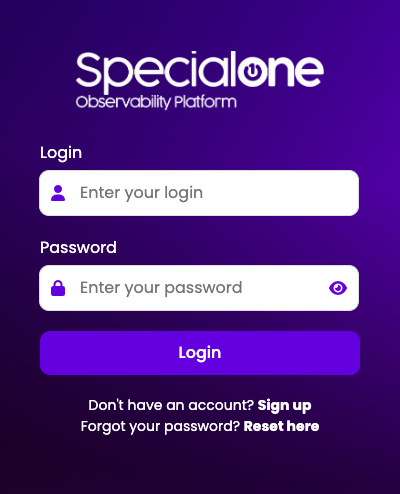
Fill in:
- Login with your corporate email.
- Password with the password sent by the administrator or the one you set on the invite.
Click Login. The eye icon next to the password field toggles visibility, useful for double-checking before submitting.
Forgot your password
Use Reset here below the form. A reset link is sent to the registered email. The link is single-use and expires after a few hours.
Multi-factor authentication
If your user has email-based MFA enabled, after validating the password the platform sends a 6-digit code to the registered address. Enter the code on the next screen to confirm.
The code is short-lived (a few minutes). If it expires, request a new one from the same screen.
I did not receive the code
Check the spam folder. If the issue persists, confirm with your administrator that the email on file is correct and that the platform's sender domain is allowed by your email provider's filters.
What you see after signing in
The landing page is the Cockpit, a consolidated view of your environment's health:
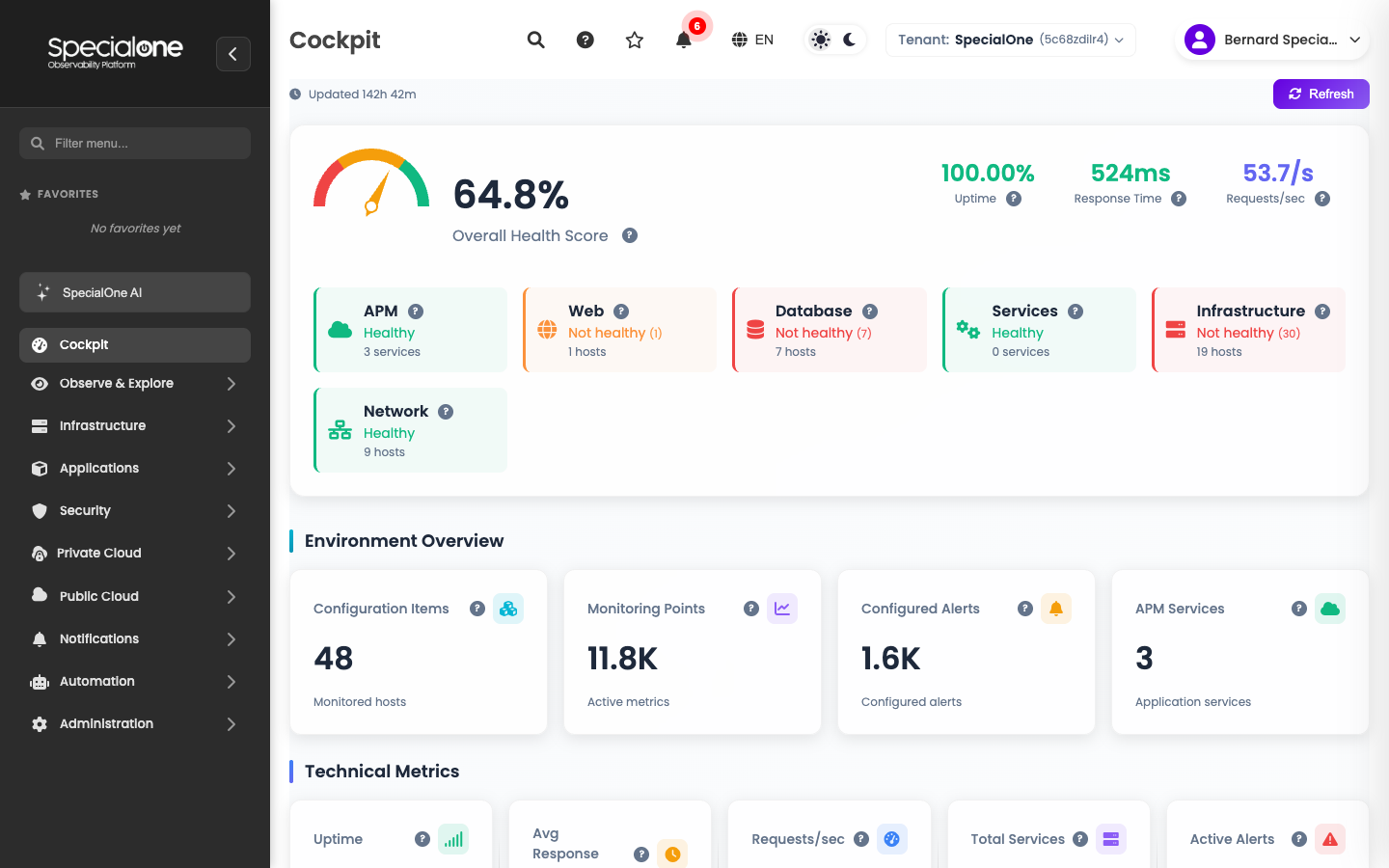
Out of the box you already get:
- Overall Health Score at the top, derived from the state of hosts, applications and services in your tenant.
- Per-category cards (APM, Web, Database, Services, Infrastructure, Network) showing what is healthy and what has open alerts.
- Environment Overview with counts of monitored hosts, active metrics, configured alerts and APM services.
- Technical and Business Metrics, Top Servers, Alerts History and Recent Alerts further down.
Every card with a clickable number takes you straight to the matching detail page. If your environment is brand new and has no data yet, this screen shows zeros across the board. That is expected.
The top bar
The bar pinned to the top concentrates the actions that follow you across every page of the platform:

From left to right:
| Element | What it does |
|---|---|
Global Search (Ctrl+K) |
Searches for hosts, alerts, dashboards and pages anywhere in the platform. |
| Help | Opens the contextual help for the page you are on. |
| Favorites | Marks the current page as a favorite. Favorites show at the top of the side menu. |
| Notifications | Lists notifications generated within your tenant (recent alerts, state changes). |
| Language | Toggles between Portuguese and English. Applies to the whole interface. |
| Theme | Toggles between light and dark mode. The preference is saved on your user profile. |
| Tenant | Shows the current tenant. Click to open the list and switch environments. |
| User | Access to your profile and to Sign out. |
Switching tenants
If your user has access to more than one customer or environment, click the tenant name in the top bar. A list opens with every tenant available to you, plus a search field by name.
Pick the tenant you want to enter. The page reloads already in the new context: hosts, alerts, dashboards and reports become the ones for that tenant. To go back, repeat the step picking the previous tenant.
Why the tenant is always visible
The tenant name and code stay pinned to the top bar so you do not run an action (resolving an alert, editing a rule, creating a maintenance) on the wrong environment. Check the header before applying changes.
Changing language and theme
- Language: click the PT/EN button in the top bar. The switch is immediate.
- Theme: click the sun-and-moon button. Dark mode reduces screen brightness and helps during long sessions or in dimly lit rooms.
Both preferences are tied to your user, so they follow you on any machine you sign in from.
Signing out
Click your name in the top-right corner and choose Sign out. The session ends and you return to the login screen.
The session also expires automatically after a period of inactivity. When that happens, the platform redirects you to the login page on the next action that requires the server.
I cannot sign in
| Symptom | Where to look first |
|---|---|
| "Invalid login or password" | Confirm the email is exact and Caps Lock is off. Use Reset here if the password is forgotten. |
| MFA code never arrived | Check the spam folder. Confirm with the administrator the email registered. |
| Locked or disabled user | Reach out to your tenant administrator. Only they can reactivate access. |
| Login page does not load | May be a network block at your company. Try a different connection (e.g. 4G) to isolate the issue before contacting support. |
If none of these helps, open a ticket at support.specialone.io including the user email and the tenant you should have access to.
Next steps
-
Concepts
Vocabulary that shows up across the whole platform: tenant, host, hub, agent, alert, rule, channel.
-
Quickstart
Guided 15-minute tour through the cockpit, alerts and notification channels.