Service Management automations
Beyond the alert automations, the Service Desk ships a set of ready-made automations that handle the flow of the tickets themselves: they close, assign, route, prioritize and pause tickets on their own, following rules you define. No agent or runbook required, it is the Service Desk acting on its own.
Reach it under DevOps → Automations → Add → Service Management.
Requires Service Desk configured
These automations only appear for tenants with the Service Desk module active, because they act on your tickets and read your Service Desk's category tree.
Who uses it
- Support coordination: sets the assignment, routing and priority rules so the team works consistently.
- Analysts: benefit from the automatic flow (a ticket lands on the right team, with the right priority) without manual triage.
The ready-made automations
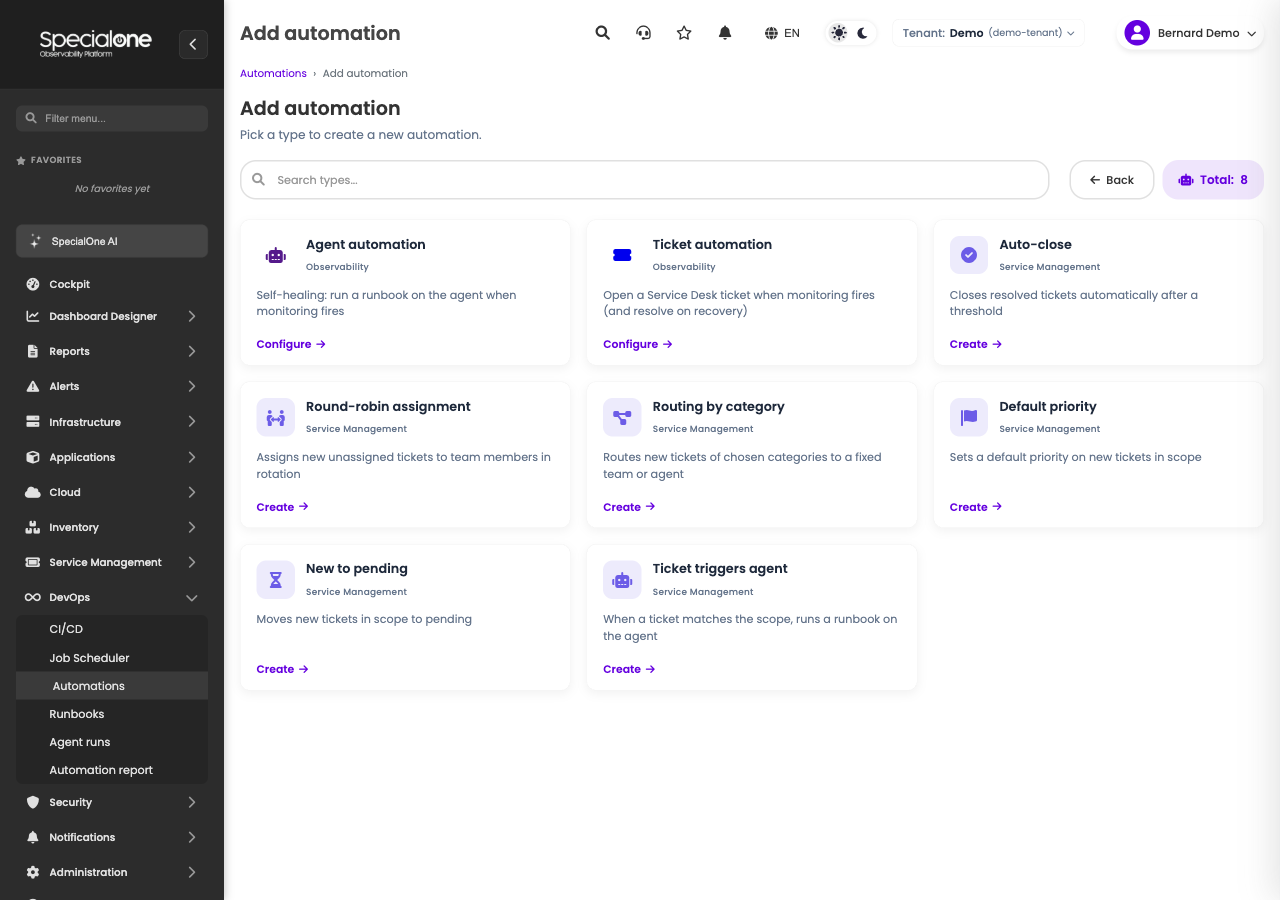
The Add button opens the palette with the available types. In the Service Management family:
| Automation | What it does |
|---|---|
| Auto-close | closes resolved tickets automatically after a period with no reopening |
| Round-robin assignment | distributes new unassigned tickets among a team's members, in rotation |
| Routing by category | sends new tickets of chosen categories to a fixed team (or agent) |
| Default priority | sets a priority on new tickets in scope |
| New to pending | moves new tickets in scope to the pending status |
| Ticket triggers agent | when a ticket enters the scope, triggers a runbook on an agent (documented in the Automation module) |
You can have several instances of each type, with different scopes (e.g. one routing-by-category per team).
The scope (shared by almost all)
Almost every Service Management automation is configured through the same scope, which makes "which tickets it acts on" predictable:
- Ticket type: Incident or Request.
- Minimum age (min): only acts on tickets older than X minutes (avoids acting on a ticket the requester is still opening).
- Category scope: All, Only these or All except. In the last two, you pick by Family → Service → Subcategory (your Service Desk's category tree). The picks become chips.
- Simulation mode (dry-run): shows which tickets would match, without changing anything. Always validate the scope in simulation before turning it on for real.
Auto-close
Automatically closes tickets that have been resolved for at least a time you define (e.g. 5 days). It is the "resolved with no reply from the client becomes closed" pattern, keeping the queue clean without anyone closing by hand.
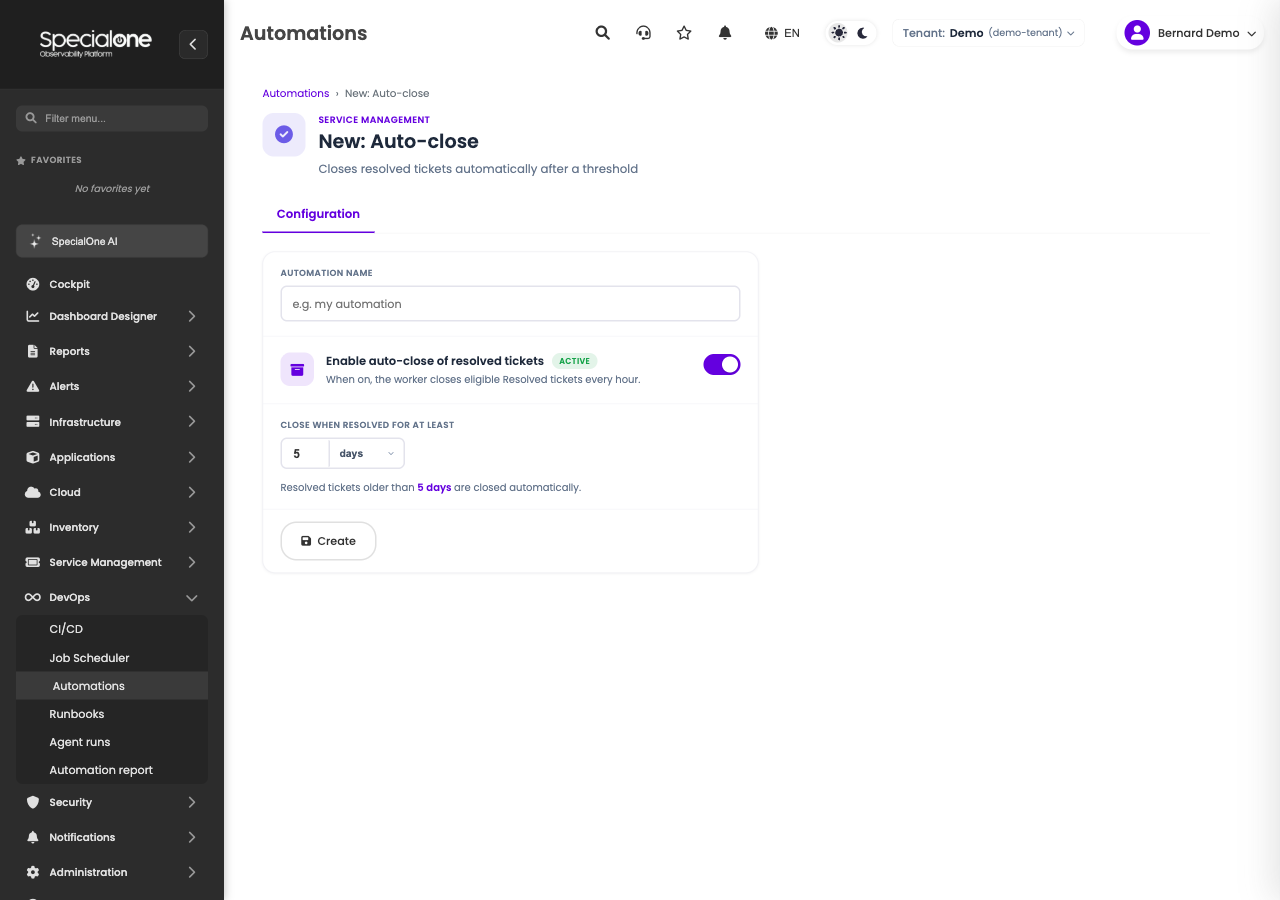
Configure just the threshold (value + unit: days, hours or minutes) and the scope. Run now applies it immediately over the eligible resolved tickets.
Round-robin assignment
Distributes new unassigned tickets among a team's members, in rotation (round-robin), balancing the load without anyone picking who takes what.
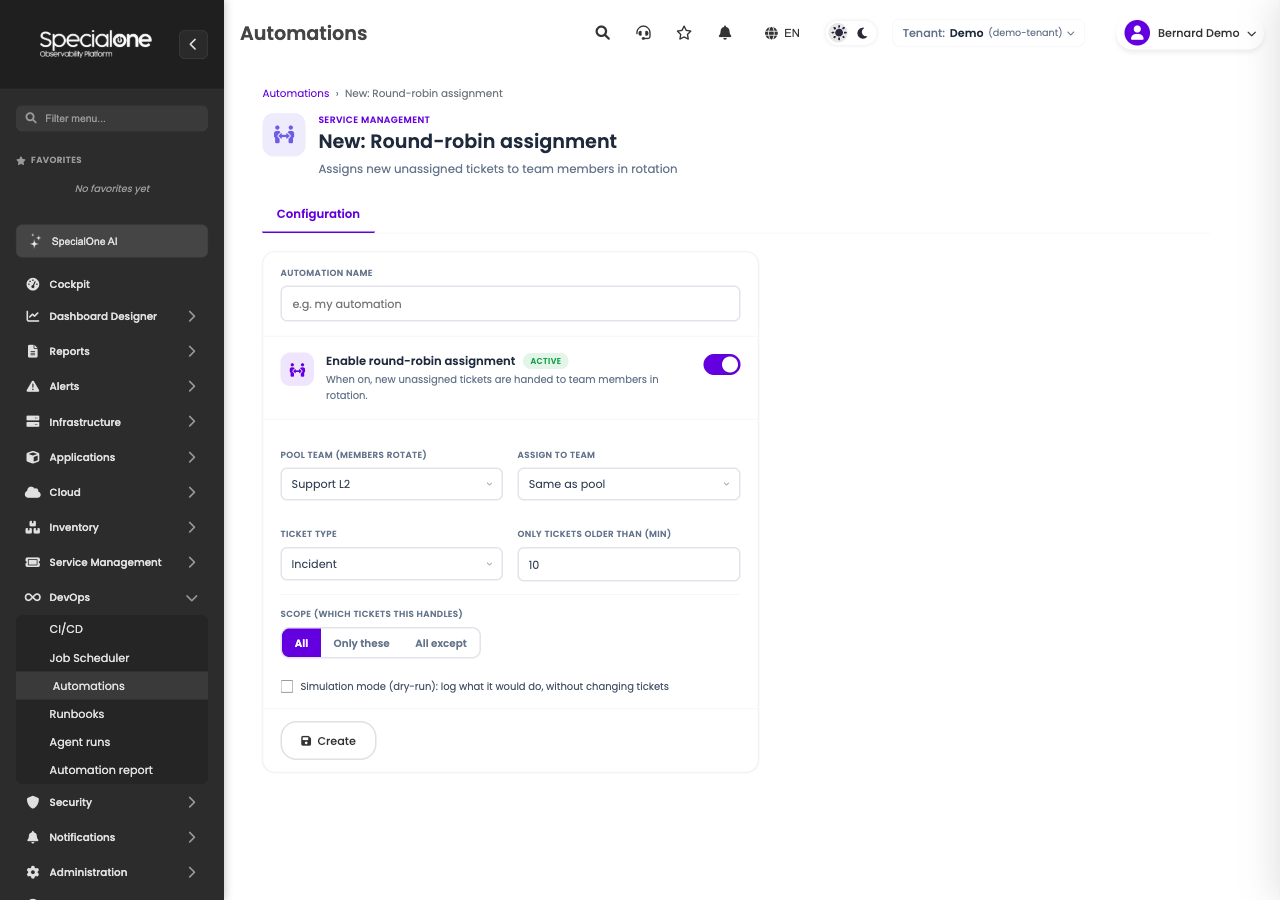
- Pool team (members rotate): the team whose members enter the rotation.
- Assign to team: optional; by default assigns to the same pool team.
Routing by category
Sends new tickets of specific categories straight to a fixed team (or agent). It is what ensures "network tickets go to the network team" without manual triage.
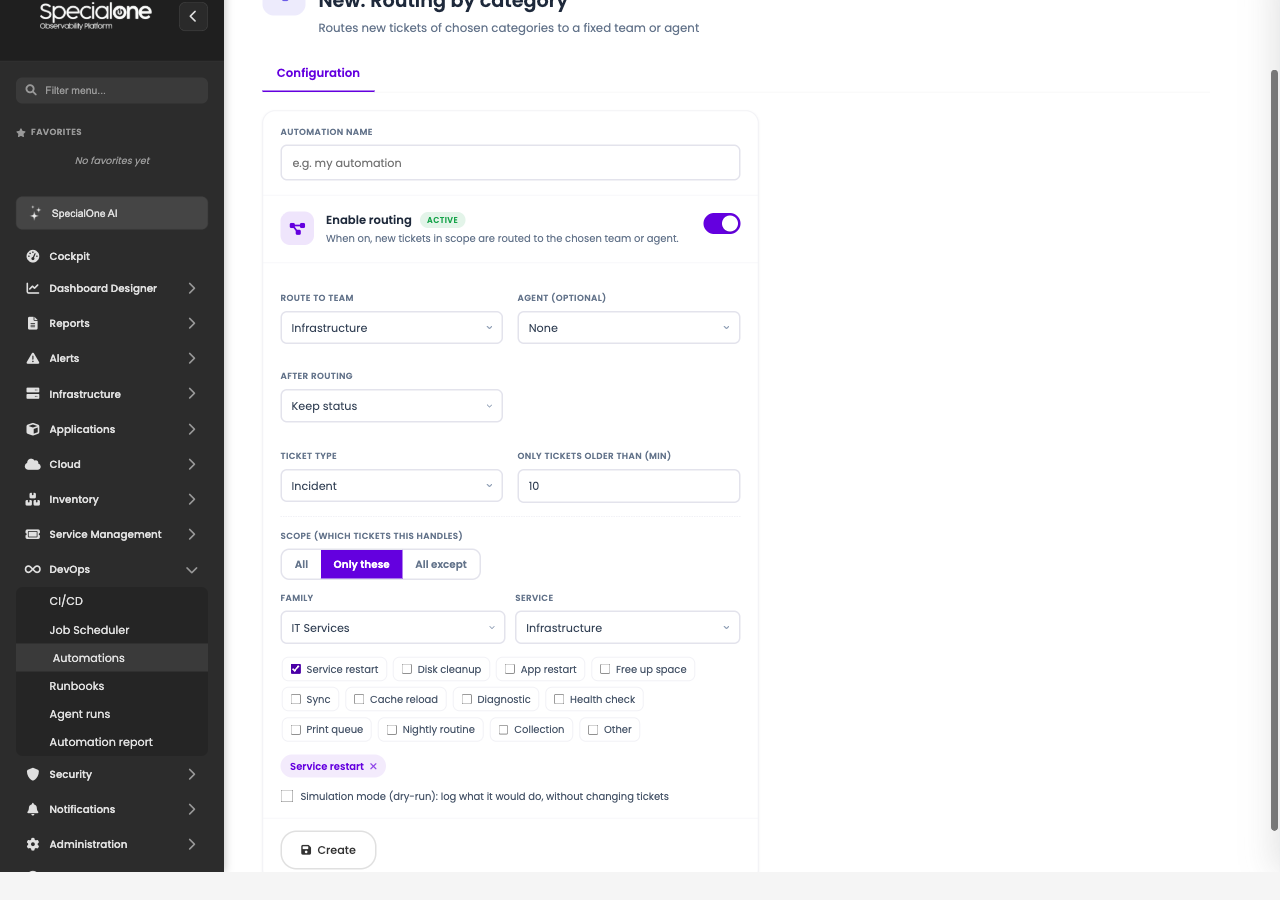
- Route to team: the team that receives it.
- Agent (optional): if you want to assign to a person right away.
- After routing: keep the status or mark as assigned.
- Scope: here the category is the heart of the rule, use "Only these" and select the categories that team handles.
Default priority
Sets a priority (Critical, High, Medium or Low) on new tickets in scope. Useful when a category should always start with a minimum priority (e.g. outage tickets come in as Critical).
Configure just the target priority and the scope.
New to pending
Moves new tickets in scope to the pending status. Useful, for example, to hold tickets waiting on third parties, or to automatically pause outside business hours.
- When to pend: When opened (every new ticket in scope goes straight to pending) or At a time (pauses and resumes at hours and days you define).
Ticket triggers agent
The bridge between the Service Desk and the agents: when a ticket enters the scope, it triggers a runbook on an agent, which can even reply back on the ticket. It is documented in detail in the Automation module, under Ticket automation, with the full recipe in Examples → Handle a ticket.
Follow up
Each automation has its Executions tab, with the history of what it did (how many tickets it affected, errors, references). The Automation report sums it all up by type, so you can see the volume the automatic flow is handling.
Next steps
-
Alert and ticket automations
Auto-remediation and the ticket → agent bridge, in the Automation module.
-
Ready-made examples
Complete recipes, including automatically handling a ticket.
-
Service Management
The ticket module where these automations act: queue, SLA, catalog and integrations.