Mobile App
The SpecialOne mobile app is the natural companion to the web portal. When the NOC wall is far away, when you are in a meeting, in transit or on a night shift, the app delivers what matters: tenant KPIs, list of open alerts, and push notifications straight to the device.
The app focus is consumption: you keep up with what is happening, get nudges and open details. Creation, rule editing and structural settings stay on the web portal. The app is the hand reaching out when you are away from the laptop.
Who uses it
- NOC on-call that needs to answer a call with the phone in hand.
- SREs on rotation who get a critical alert at 3 AM and want context before opening the laptop.
- Tech leads that want an executive snapshot without firing up the VPN.
- Managers that monitor general health throughout the day.
Install
The app is available on the App Store (iOS) and Google Play (Android):

Or search for SpecialOne on your device's store.
Requirements:
- iOS 15 or higher.
- Android 9 or higher.
- Access to the same tenant as the web portal (same account, same password).
Tenant pre-registered
The app uses the credentials you already have on the web portal. If you do not have an account yet, ask the tenant administrator to create one. There is no self-service sign-up directly on the app.
Sign in
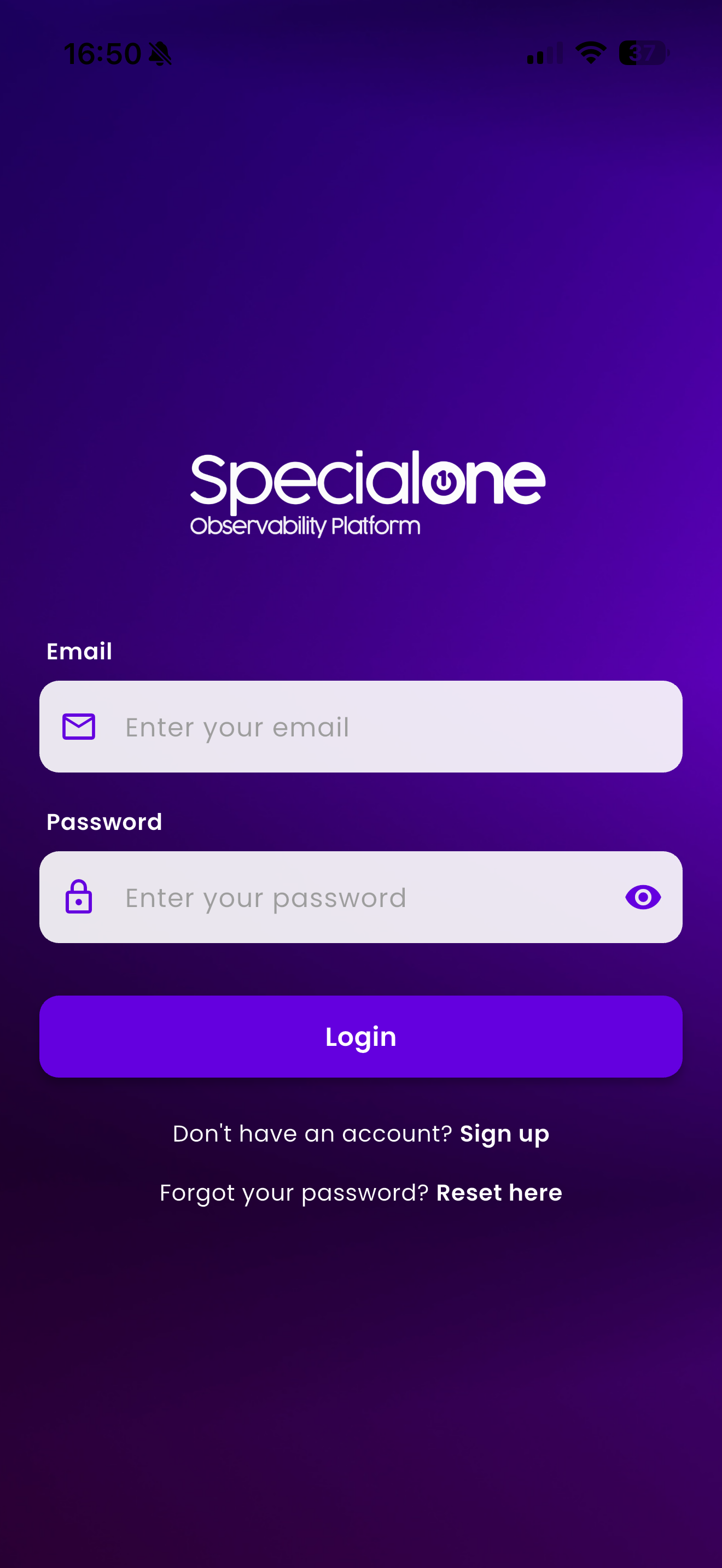
The initial screen asks for email and password. The same ones you use on https://app.specialone.io. Forgot your password? Use Reset here to get a reset link.
After signing in, the app keeps the session on the device. You only need to sign in again if the session expires (default 30 days) or if you sign out manually.
MFA on the app
If your account has MFA enabled, the app asks for the 6-digit code on first sign-in and whenever the session refreshes. Have your authenticator app handy.
Dashboard
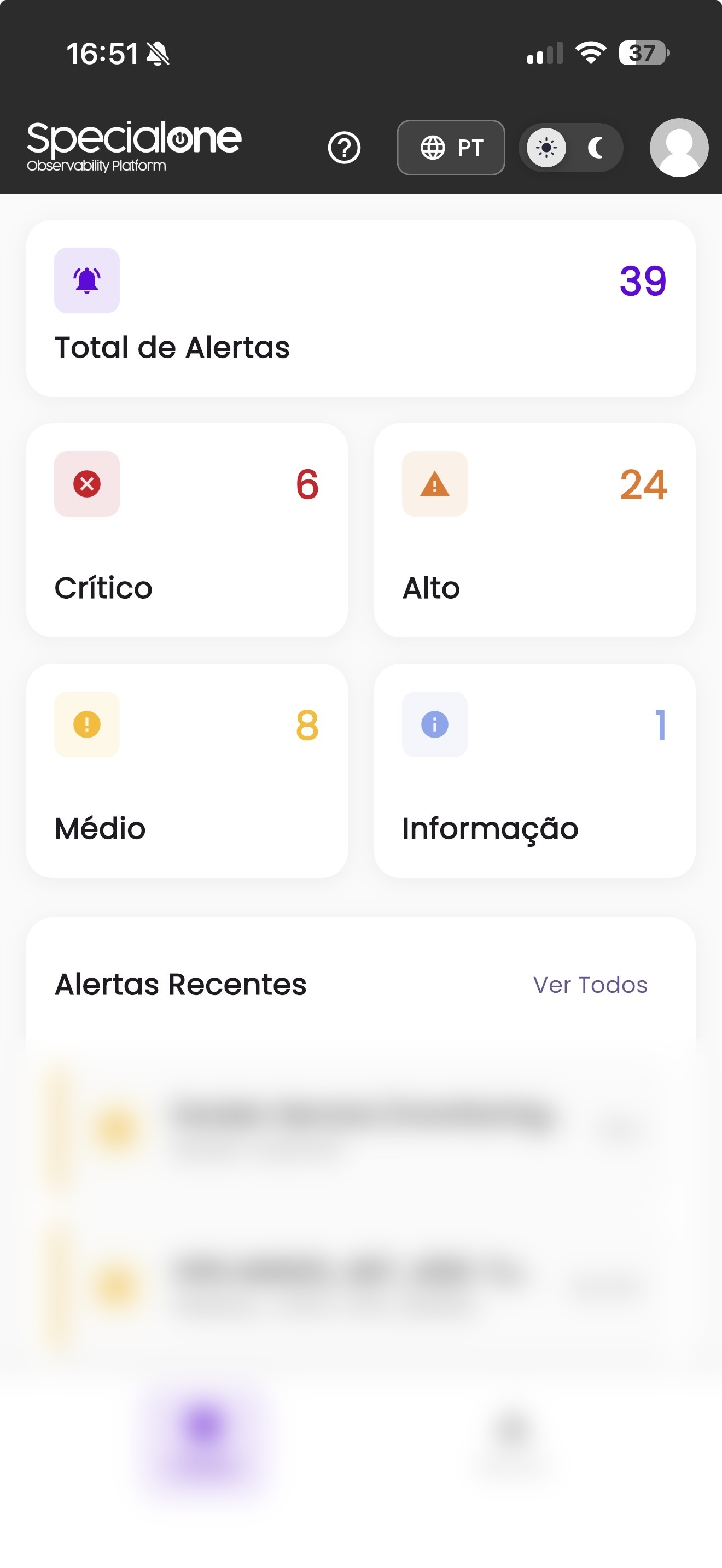
The first screen after login is the Dashboard. Structure:
| Block | What it shows |
|---|---|
| Total Alerts | Total count of open alerts on the tenant. |
| Critical | Critical-severity alerts firing now. |
| High | High-severity alerts. |
| Medium | Medium-severity alerts. |
| Information | Open informational alerts. |
| Recent Alerts | The latest open alerts, with elapsed time. The See All shortcut opens the full Alerts screen. |
Each severity card is tappable: tapping Critical filters the Alerts screen to show only the critical ones.
Alerts
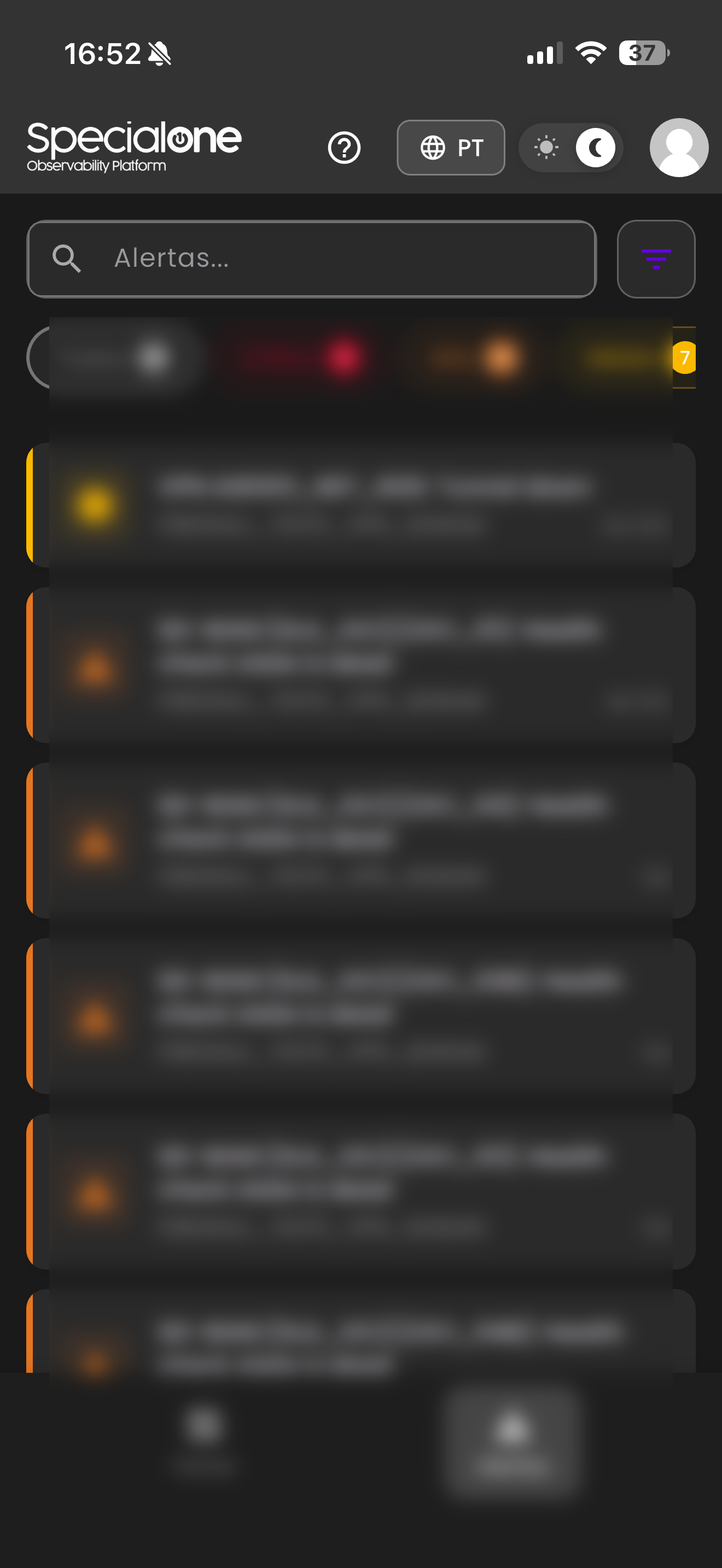
The Alerts screen lists every open alert, with quick filters:
- All (default): every alert on the tenant.
- Critical / High / Medium / Information: severity chips.
- Search field: filters by free text (alert name, host).
Each row shows:
- Severity icon (color consistent with the dashboard).
- Alert title (name configured on the rule).
- Tag/group abbreviated for context.
- Time open on the right (e.g.,
3d 22h,5d).
Tapping a row opens the alert detail with full information: host, metric that fired, history of state changes and notes recorded by the team.
Language and theme
At the top of the screen:
- Language: the PT chip opens a picker with Português (BR) and English (US). The choice applies to the whole app and is saved on the device.
- Theme: a sun/moon toggle switches between light and dark. Dark is designed for night use and on-call work, with less visual fatigue.
The app honors the operating system preference on first launch, but you can override manually.
Push notifications
This is the section that makes the app worth it. Push notifications are the most direct channel between a critical alert on the tenant and your pocket. Unlike email, Slack or Teams, push is delivered by the device operating system: lands on the lock screen, vibrates, can use high-priority sound. No need to keep a third-party app open.
Why push matters
- Full granularity: you decide exactly which alerts generate push, with no noise. No need to receive everything and filter mentally.
- Configured per user, not per tenant: each team member builds their own flow. The on-call can receive Critical + High, the manager only Critical, the DBA only alerts tagged
db:*. Each on their own route, no interference. - Independent of corporate channels: if Slack goes down, if email is delayed, if the Teams integration breaks, push keeps arriving. Shortest path between alert and action.
- Bidirectional: tapping the notification opens straight into the alert detail, with full context. No need to dig.
- Configurable cooldown: the same alert repeating will not bombard you. You define the minimum window between notifications of the same rule.
How to set it up
Three steps. One on the app, two on the web portal.
1. On the app: enable system notifications
On first launch, iOS / Android ask whether you allow notifications for the SpecialOne app. Confirm. If you already refused before, go to System Settings → Notifications → SpecialOne and enable.
Inside the app, the device token is registered automatically on your account. You can have the app installed on multiple devices at the same time (personal phone + corporate phone, for example); all of them receive.
2. On the web portal: create a Push Notification channel
Go to Notifications → Channels → New Channel and pick the Push Notification type. Push channels use the tokens already linked to your account, so you only need to name and enable the channel. Examples:
- Push Critical On-call
- Push Personal NOC
- Push DBA - Databases
See Channels for the full step-by-step of each channel type.
3. On the web portal: tie the Push channel into a notification rule
Go to Notifications → Rules → New Rule and configure:
- Severities that should fire (e.g., Critical only, or Critical + High).
- Tags or Hostnames that filter which alerts qualify (wildcards supported, e.g.,
db-prod-*). - Destination channels: pick the Push channel you created.
- Cooldown: minimum time between notifications of the same rule (suggestion: 5 to 15 minutes for critical alerts).
See Rules for the full reference.
From Save onwards, any alert matching the rule fires push on your device. No further configuration on the app.
Patterns that work well
There is no single rule, but some patterns show up across mature teams:
| Scenario | Suggested rule | Push channel |
|---|---|---|
| Night on-call | Severity = Critical, hosts = production, cooldown 10 min | Push Critical On-call |
| Database team | Tags = db:*, severities = Critical + High, cooldown 5 min |
Push DBA |
| Executive oversight | Severity = Critical, hosts = prd-customer-facing-*, cooldown 30 min |
Push Executive |
| Active investigation | Specific tag of the incident, all severities, no cooldown | Push Investigation (created temporarily) |
The combination of channel by role and rule by criteria delivers granular control without editing device configuration. Change the destination by adjusting the rule on the portal.
Different channels for different uses
Instead of one generic Push channel wired to many conflicting rules, prefer many named channels, each tied to a small set of rules. Easier to read on the list, easier to silence selectively (mute only the NOC on a quiet Monday night, for example) without losing the others.
No push means no urgency
Do not rely on push exclusively for critical alerts. Always keep a secondary channel (email, Slack, phone) for the case where the device is out of battery, out of network, or in airplane mode. Push is the fastest, not the only.
Known limits
- The app today is read-only. Editing rules, channels or registering hosts stays on the web portal.
- Push depends on Apple (APNs) and Google (FCM) services. If they are unavailable in your region, push can be delayed.
Next steps
-
Notification channels
Create the Push channel and configure other destinations (Email, Slack, Teams, Webhook, Telegram).
-
Notification rules
Define when each channel receives an alert, with filters by severity, tag and hostname.
-
Open alerts
The full web screen, with advanced filters and notes. Complementary to the app.